Part A: DreamTracker on the web
DreamTracker helps you turn big goals into daily work and see, each evening, how the day went. This part covers everything on the website: setting up your goals, planning and timing your day, the Daily Report, other reports, sharing goals and notifications.
A.1 Getting started
A.1.1 Signing up and signing in
- On the sign-up page, enter your Email address and a Password (twice), then click Create account. Or click Sign up with Google.
- New accounts are checked by an administrator first. Until then, signing in shows Account Pending Approval. You'll be able to sign in once your account is approved.
- Sign in with your email and password, or Sign in with Google. Tick Remember me on your own device. If you forget your password, use Forgot your password?.
After signing in you land on the Dashboard.
A.1.2 Finding your way around
The top bar takes you to every main page:
| Link | What it's for | See |
|---|---|---|
| Dashboard | An overview of all your goals | A.1.3 |
| Today | What's scheduled for a day, and your day score | A.4 |
| TODO | Your working list across all goals | A.4 |
| Overdue | Work that has slipped | A.5 |
| Week, Calendar | Your plan laid out in time | A.6 |
| Reports, Compare | Reports over a period, and goals side by side | A.8 |
| Goals | All your goals | A.2 |
The bell shows unread notifications (A.10). Your name opens the account menu, with Collaborations, User Guide, Settings and Logout. On a phone, the ☰ button opens the same links.
A.1.3 The Dashboard
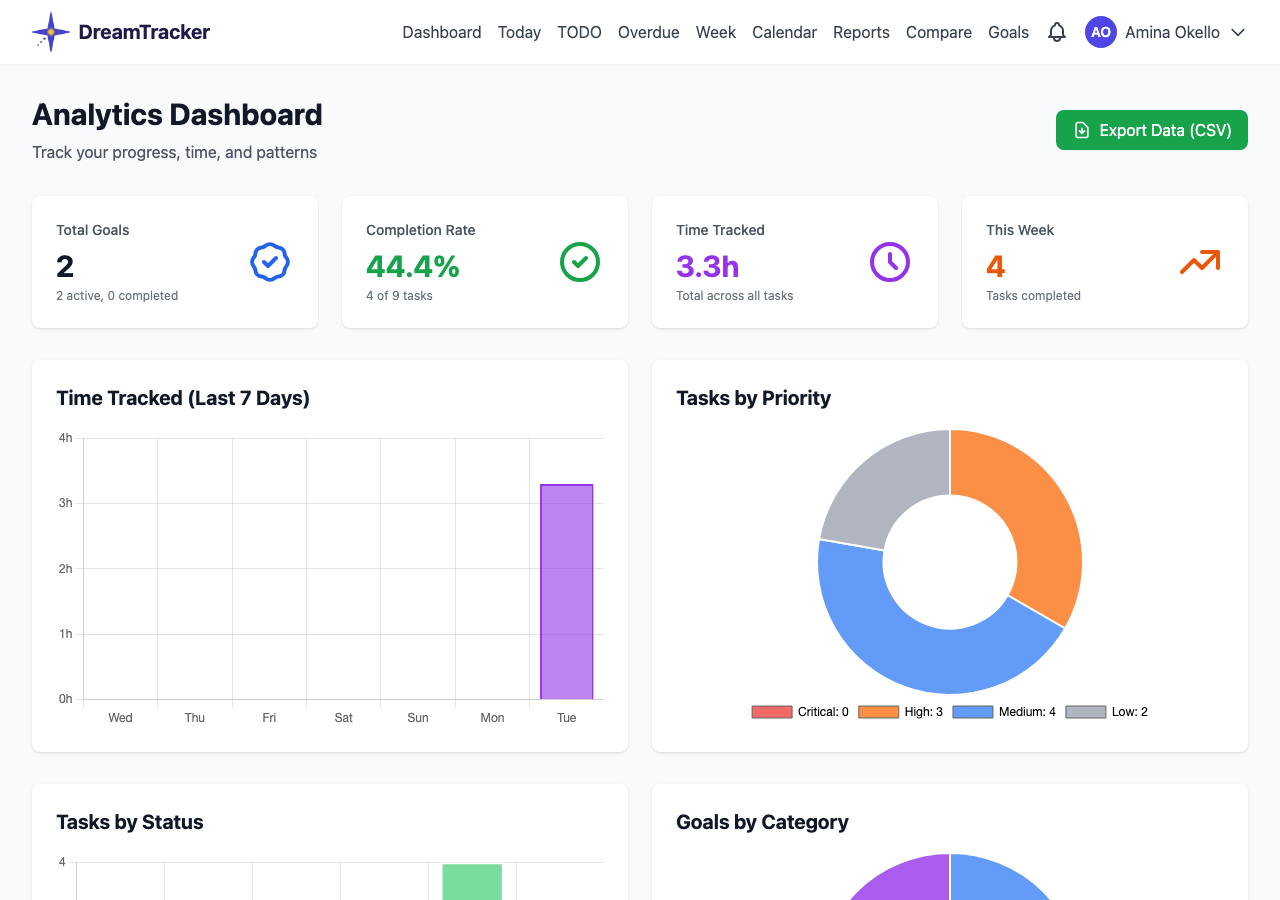
The Analytics Dashboard gives an overview: total goals, completion rate, time tracked and this week's activity, with charts of time over the last 7 days, tasks by priority and status, goals by category, and progress on your active goals.
A.1.4 Settings
Open Settings from the account menu. It has seven tabs:
- Profile: your photo (JPG or PNG up to 2 MB) and Display name.
- Time zone: decides when your day starts and ends on Today, TODO, Overdue and the Daily Report. If your device is in a different zone, a button offers to use it.
- Email: add, verify or remove email addresses and choose the primary one.
- Password: change your password (or set one if you signed up with Google).
- Notifications: what you're told about, where, and Telegram (A.10).
- Daily report: the evening email and Telegram report (A.7.5).
- API token: the key dreamtracker-sync uses to reach your account (B.2.2).
A.2 Goals, milestones, targets and tasks
A.2.1 How the four levels fit together
Everything in DreamTracker hangs off four levels:
| Level | What it is | Example |
|---|---|---|
| Goal | Something you want to achieve, with why and how | Launch the community website |
| Milestone | A major stage on the way | Design and content |
| Target | A concrete result within a stage | Home page |
| Task | One piece of work you can do and tick off | Write the welcome text |
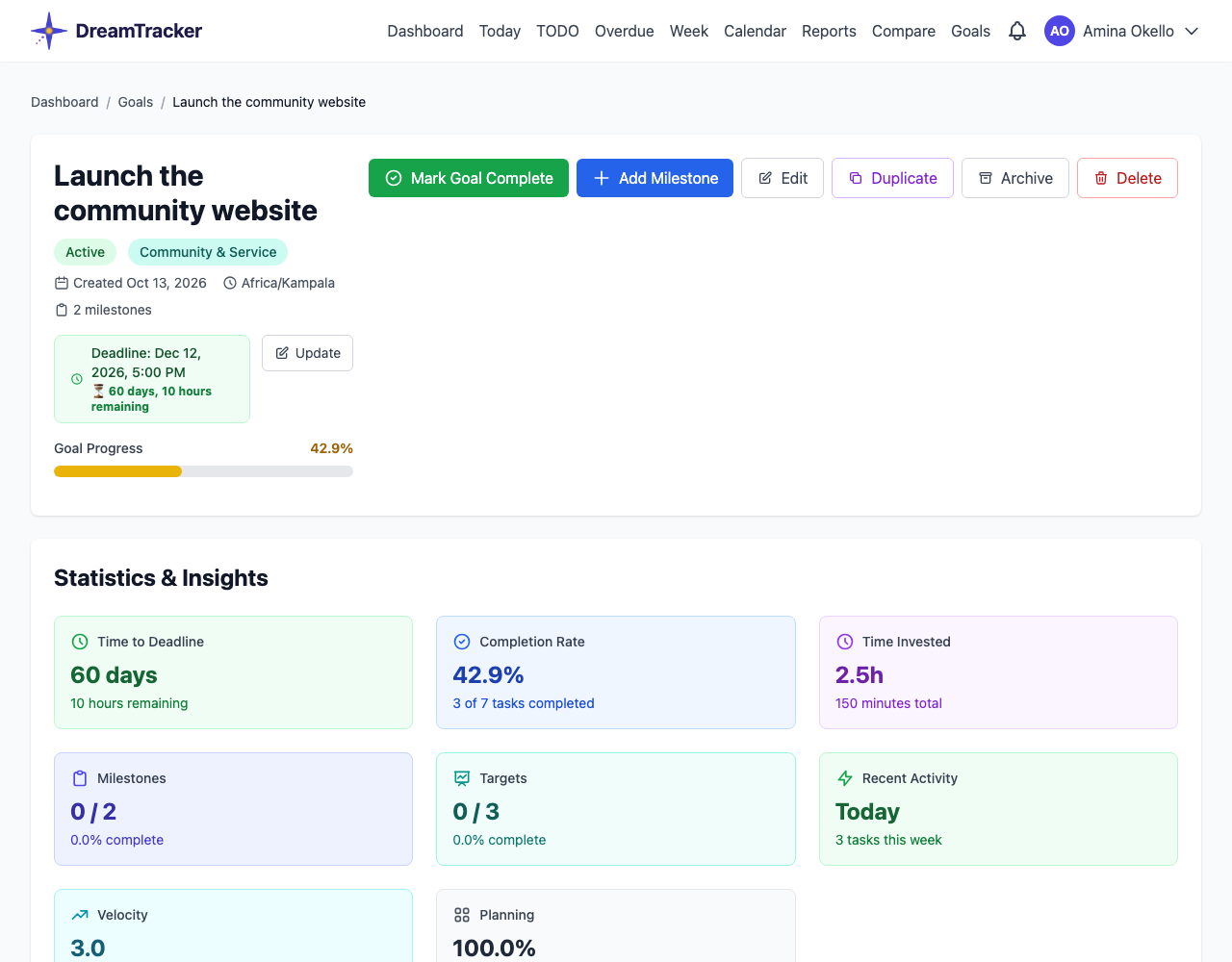
A goal's progress is the share of its tasks that are completed. Goals, milestones and targets have deadlines; tasks have a scheduled date, the day you plan to do them.
A.2.2 Creating and editing
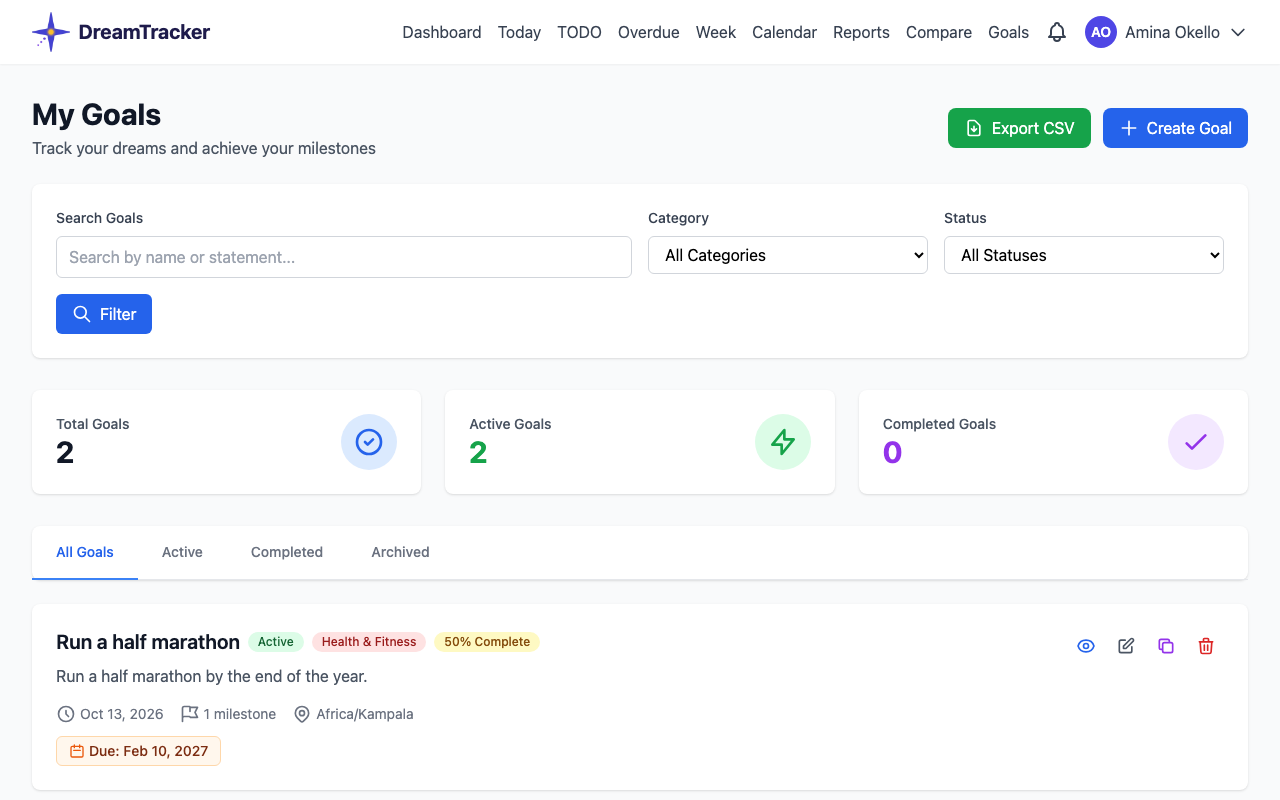
- Goal: on the Goals page click Create Goal. Give it a Goal Name, a Category and a Deadline. The statement, motivation and strategies are optional but worth writing: they are what you'll read when the going gets hard.
- Milestone: on the goal's page click Add Milestone. It needs a name, a responsible person and a deadline.
- Target: on the milestone's page click Add Target, with the same details.
- Task: on the target's page click Add Task. Give it a Name, Priority and, ideally, a Scheduled date. Tick Add to my TODO list to put it on your working list straight away.
Each page has an Edit button to change details later. To move a task to another target in the same goal, open Edit on the task and choose the new Target (shown as Milestone › Target): it keeps its status, time and history and goes to the end of the new target. To change a deadline, use Set Deadline or Update next to it: you can say why, and the goal keeps a Deadline History of every change.
A.2.3 Status, priority and dates
A task's status is one of:
| Status | Meaning |
|---|---|
| Untouched | Not started (the starting status) |
| Ongoing | Being worked on. Starting a timer sets this. |
| Paused | Started, put aside for now |
| Blocked | Can't continue until something else happens |
| Completed | Done |
| Cancelled | You've decided not to do it |
On a task's page, Status Management has quick buttons (Start Working, Pause, Resume, Mark Blocked, Mark Complete). Anywhere you see a task's tick box, ticking it completes the task and unticking sets it back to Untouched.
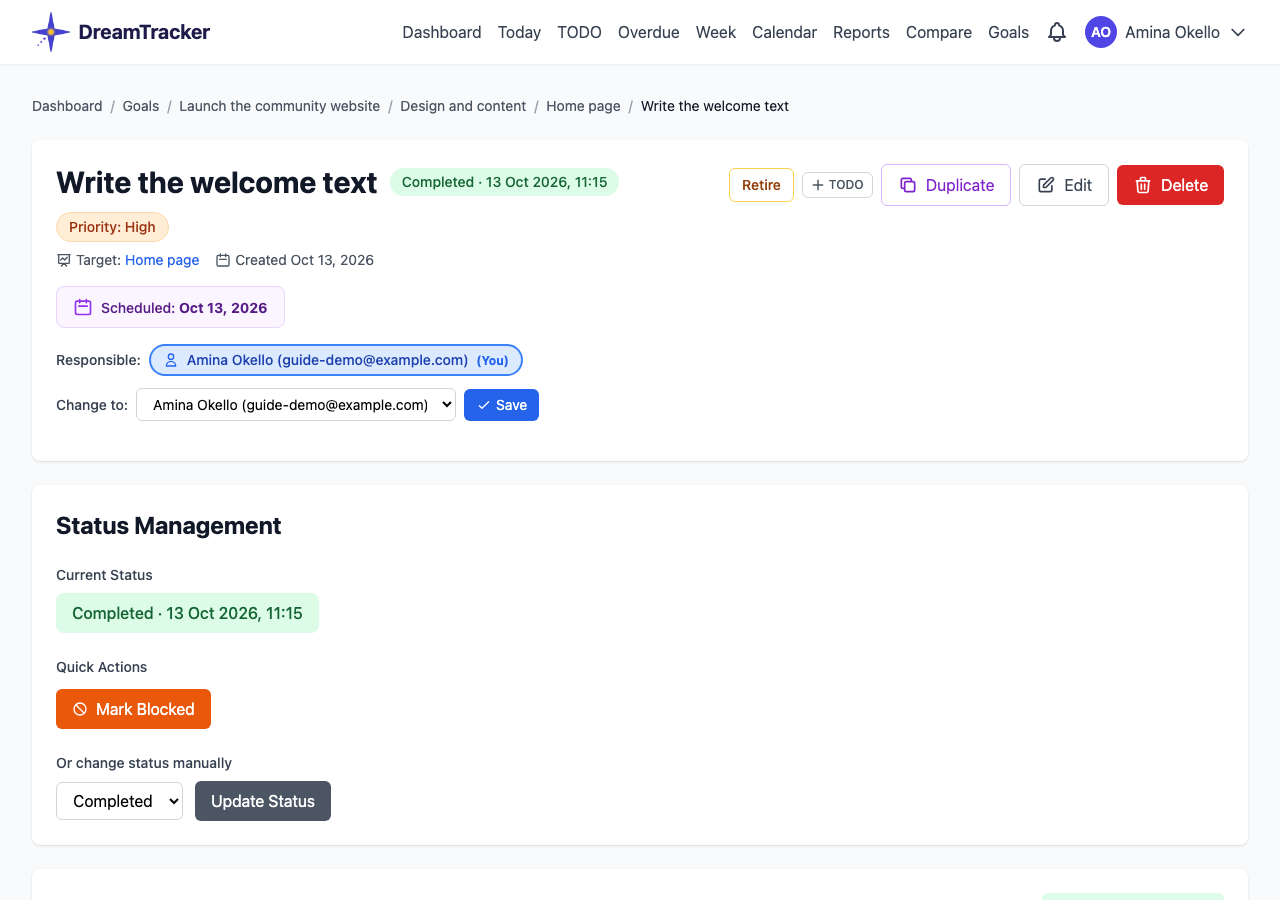
Priority is Critical, High, Medium (the default) or Low. It decides the order of lists. It does not affect your day score.
A.2.4 Changing many tasks at once
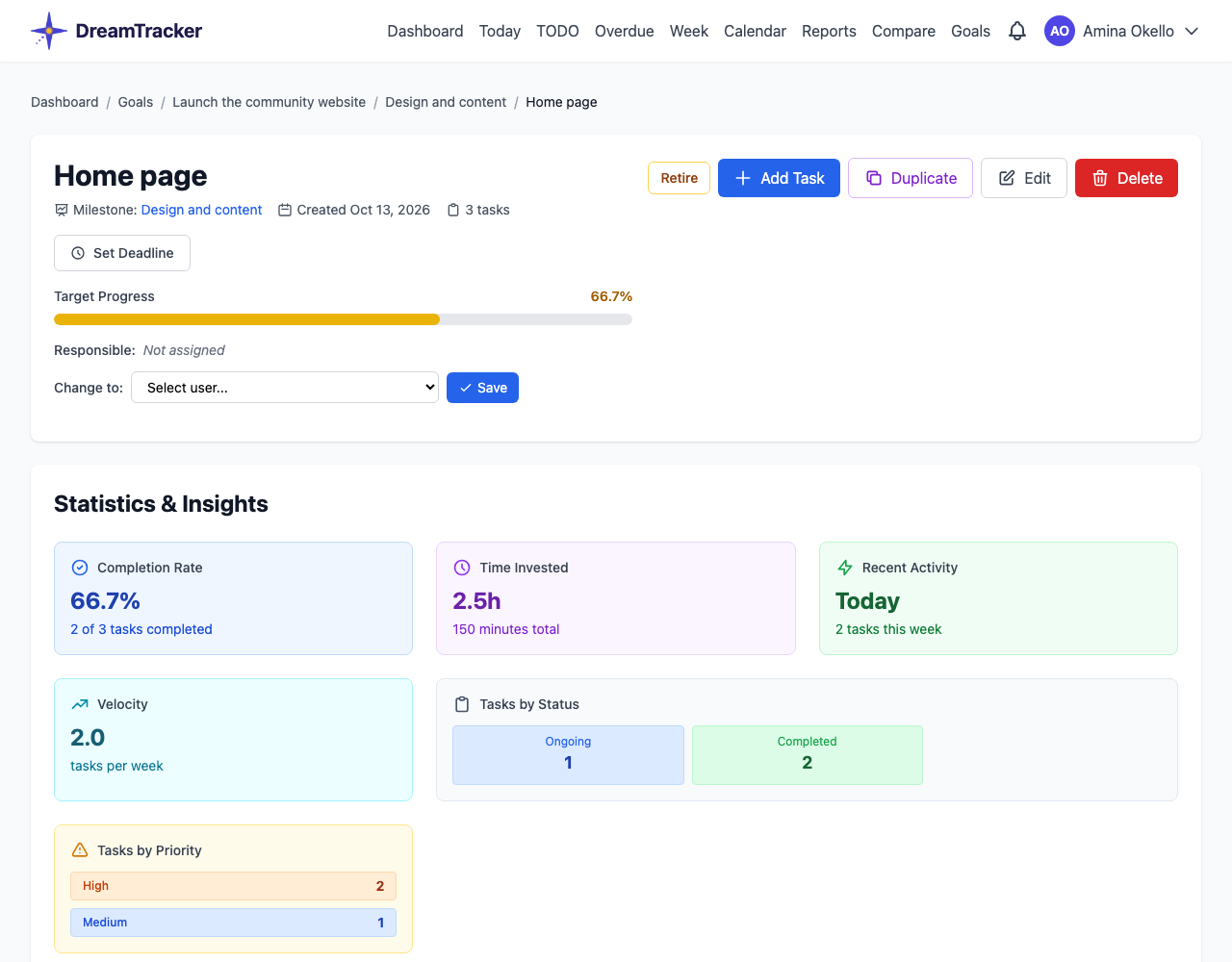
On a target's page, tick several tasks (or Select all) and use the bar that appears: Add to TODO, Mark Complete, Mark Incomplete or Delete (owner only).
A.2.5 Duplicating
Use Duplicate to reuse a structure, for example a project you run every year.
- Goal (owner only): copies its milestones, targets, tasks and deadlines. Date Offset (days) moves every date forward, or set a New Deadline for the copy directly. You can also invite the same collaborators again. Copied tasks start Untouched, and time records are not copied.
- Milestone or target: copy into the same or another goal or milestone, with or without what's inside it.
- Task: copy into any target, optionally adding it to your TODO list.
A.2.6 Completing and archiving a goal
- Mark Goal Complete completes every task in the goal and marks the goal Completed. Retired tasks are left as they were. On a milestone's page, Mark all Complete does the same for that milestone.
- Archive (owner only) puts a goal away. It becomes read-only and leaves the Goals list (filter for Archived to see it). Activate Goal brings it back.
- Delete removes a goal and everything in it for good. If you might want the record, archive instead.
A.3 Retiring and restoring
A.3.1 Retiring is not deleting
Plans change. Sometimes a milestone, target or task is no longer part of the plan, but deleting it would lose the record that it was ever there. Retiring takes it out of the plan and keeps it on record:
- it stops counting towards progress;
- it disappears from Today, TODO pickers, Overdue and quick-add suggestions;
- its history, time and the reason you gave are kept, and you can restore it at any time.
Goals are not retired. To put away a whole goal, archive it (A.2.6).
A.3.2 Retiring and restoring an item
- Open the milestone, target or task and click Retire (owners and editors).
- The page shows what will leave the plan, for example how many open tasks a target takes with it.
- Write Why is this being retired?. A reason is required and kept permanently.
- Click Retire it.
A retired item shows a Retired badge. The goal's page notes how many items are retired, with a link, See the record, to the Retired from this goal page: every retired item with its reason, and a history of retirements and restorations. To bring something back, click Restore, say why, and click Restore it.
A.4 Your day: Today, timers and TODO
A.4.1 The Today page
Today shows the tasks scheduled for a day. Use the arrows or the date box to look at another day, and Day report to open its Daily Report.
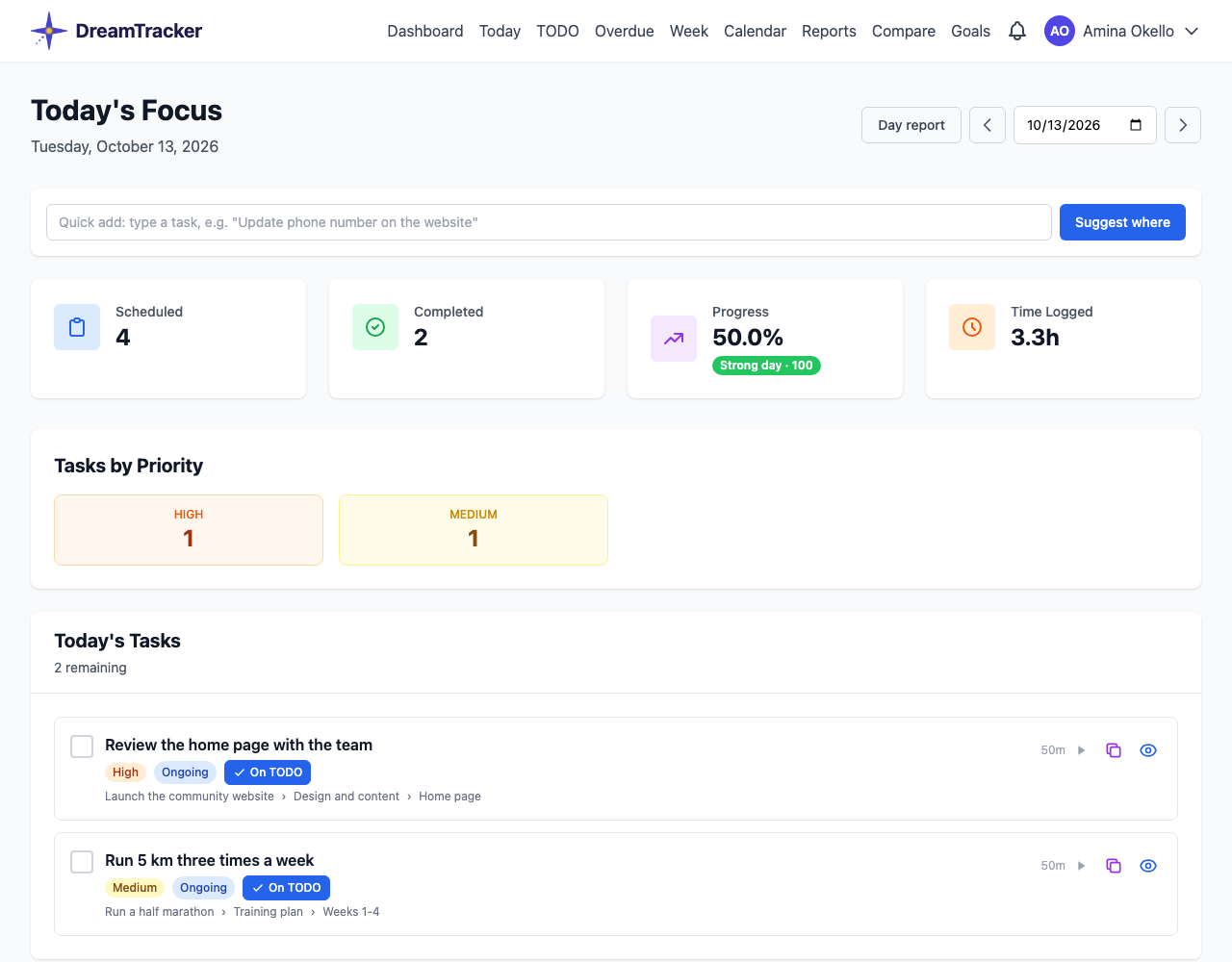
- Four tiles: Scheduled, Completed, Progress and Time Logged. Under Progress, the coloured badge is your day score (A.7.2). Click it for the full report.
- Today's Tasks lists what's left, most important first (Critical, High, Medium, Low), with buttons to complete, time, duplicate or open each task, and an On TODO chip to add it to or remove it from your TODO list.
- Completed Today includes tasks finished that day that weren't scheduled for it. Those still count, at half weight, in your score.
A.4.2 Timing your work
Click the ▶ next to any task to start timing it, and ■ to stop. On a task's own page the buttons are Start Session and Stop Session.
- Starting a timer on an Untouched task makes it Ongoing.
- Completing a task stops its timer.
- If another timer is already running, you choose: Stop it and start this, Run both or Cancel.
- Forgot to start or stop the timer? You can add, correct or delete the time afterwards (A.4.3).
Timed work counts on the day it was done: a task you worked on today but didn't finish still counts as ongoing in today's score.
A.4.3 Adding, correcting and deleting time
Each start and stop of a timer is a session. A task's sessions are listed under Time Sessions History on the task's own page, and its Tracked Time is their total.
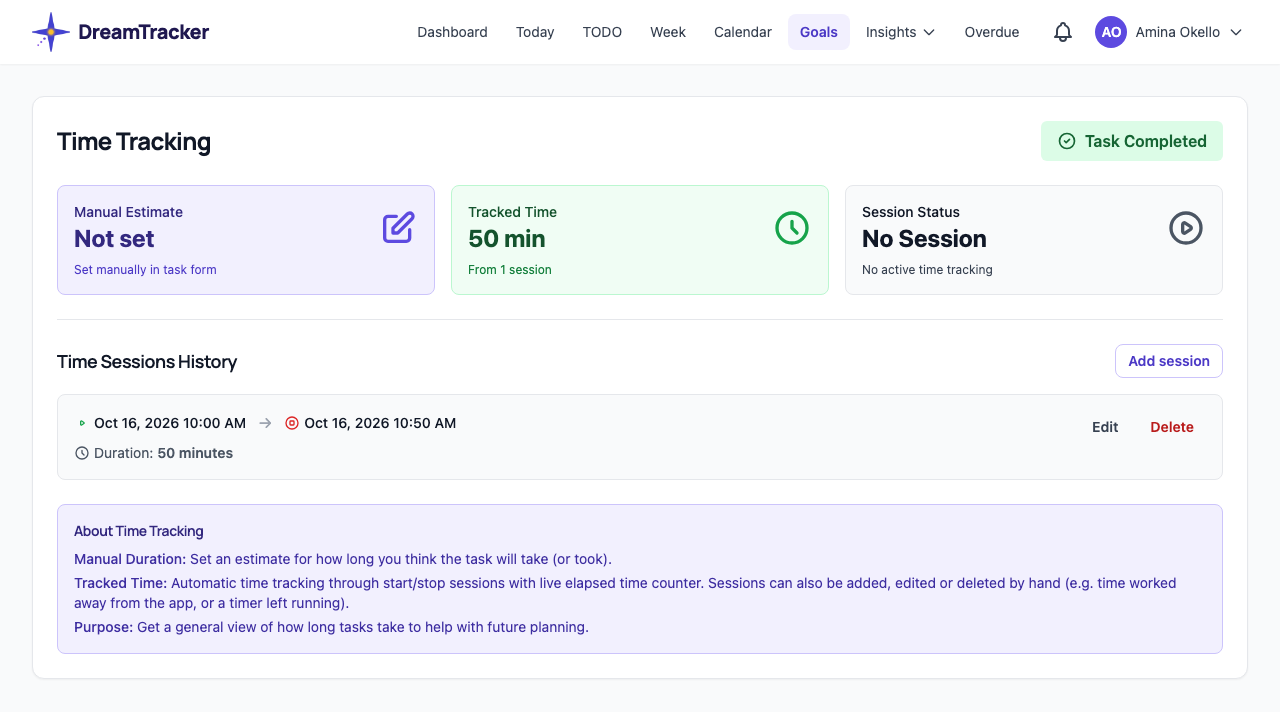
- Add session records time you worked without the timer, for example away from your computer. Enter the Start and End, add Notes if you like, then Add Session.
- Edit corrects a session. The usual case is a timer left running: one started at 10:11 and only stopped at 07:01 the next morning shows 1,250 minutes. Change the End to when you really stopped, then Save Changes.
- Editing a session that is still running: give it an End to stop it, or leave the End blank to keep it running.
- Delete removes a session and takes its time off the task. It asks you to confirm first, and can't be undone.
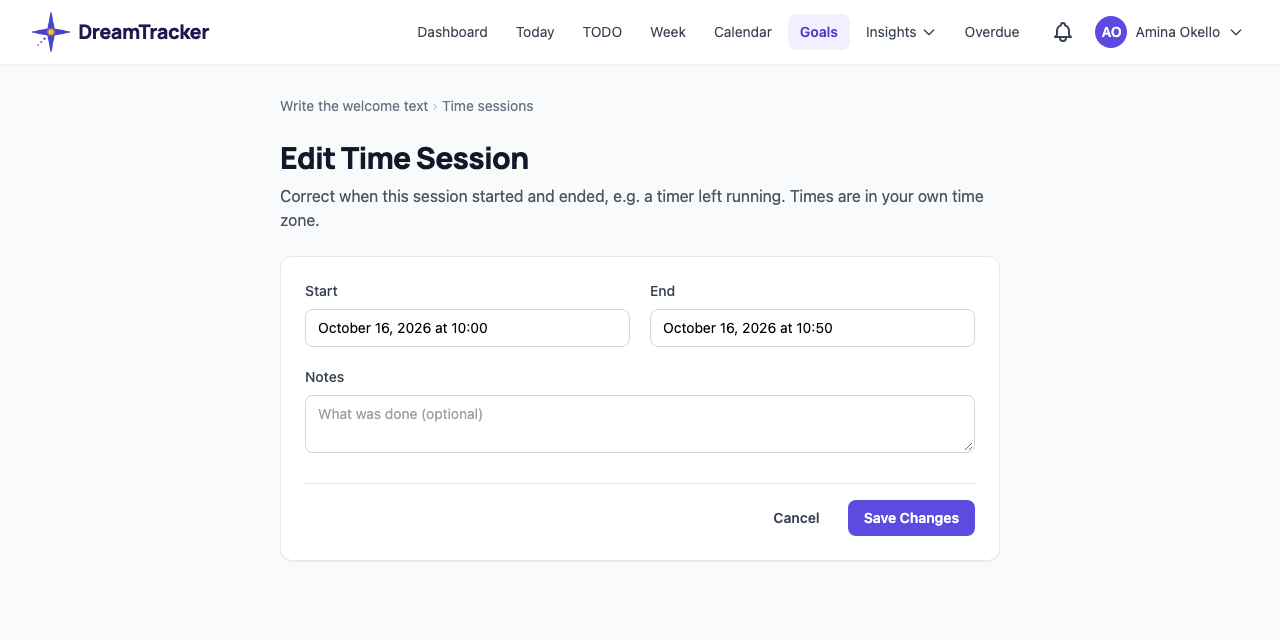
The End must be after the Start, and neither can be in the future. Adding exactly the same session twice (same start and end) records it once.
The task's Tracked Time, Today's Time Logged, your day score and every report work from the sessions, so they all follow a correction straight away.
A.4.4 The TODO list
The TODO List is your working set: everything you're on right now, from any goal, in the order you choose. Adding a task to it or removing it never changes the task itself.
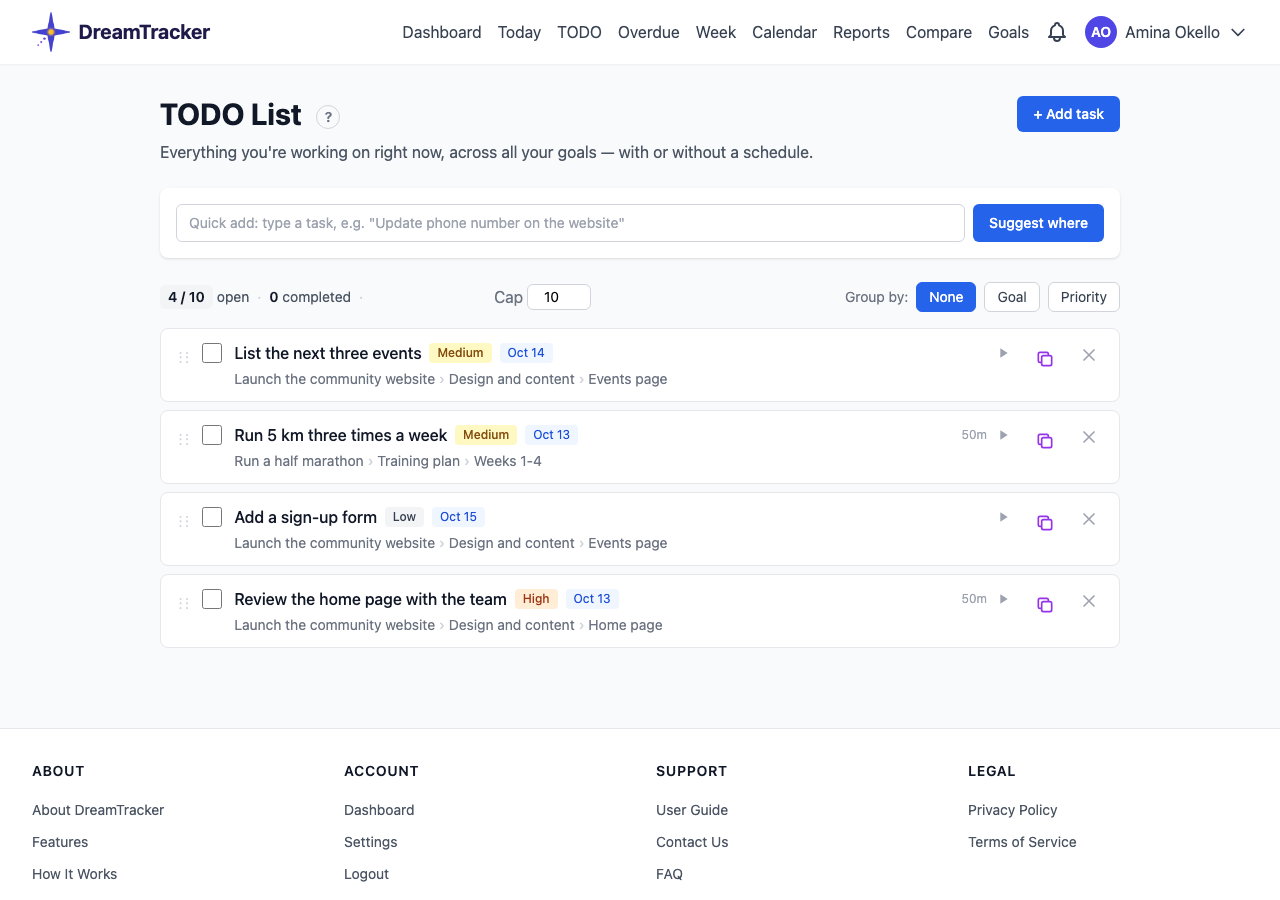
- + Add task → Existing task: choose goal, milestone, target and task, then Add to list.
- + Add task → New task: create a task in place, even with a new goal, milestone or target, then Create & add.
- Tick to complete; drag the handle to reorder; Group by goal or priority; the ✕ removes an item from the list (the task is kept).
- The list has a cap (10 open items to start with) to keep it focused. When it's full you can raise it, or change it in the list's settings (0 means no limit).
- Clear completed tidies away finished items.
A.4.5 Adding new work from the TODO list
Don't know where a new task belongs? Type it in the Quick add box (on TODO, Today and goal pages) and click Suggest where.
- DreamTracker lists the targets where it fits best, best first, each with a similar task already there.
- Adjust the Task name if you like, leave Also add to TODO ticked, and set Schedule for.
- Click Add here on the right target.
If none fits, ✨ Refine with AI asks Claude to look wider and explain its picks (up to 50 times a day). New tasks created this way get Medium priority.
A.5 Overdue work
A.5.1 The Overdue page
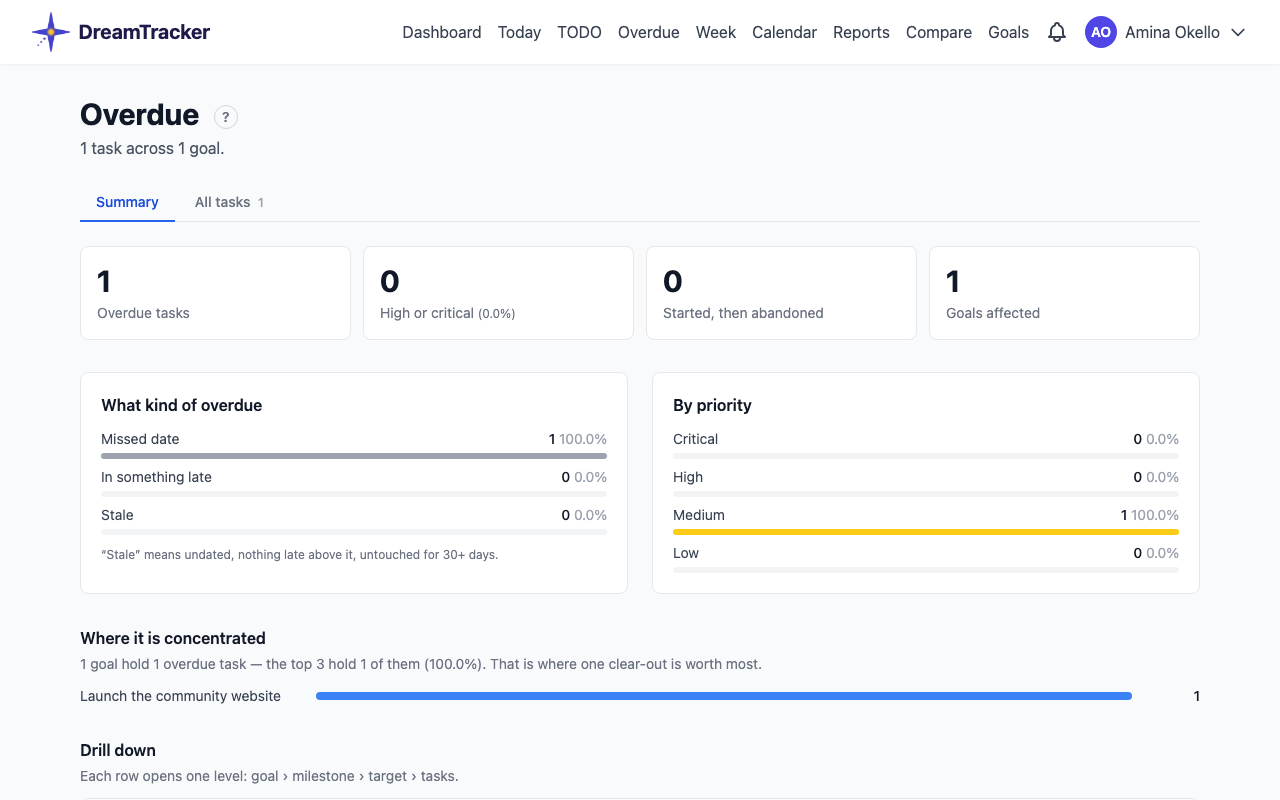
Overdue gathers open tasks that have slipped, in three kinds:
- Missed date: its scheduled date has passed.
- In something late: no date of its own, but its target, milestone or goal is past its deadline.
- Stale: no date, and untouched for 30 days or more.
The Summary tab shows how much there is, how much is high or critical, what was started and then abandoned, and where it is concentrated, with a drill-down by goal. Every number links to the matching tasks; for example, High or critical opens the list filtered to those two priorities. When nothing has slipped the page says so, and that's the aim.
A.5.2 Catching up
The All tasks tab lists every overdue task. Search and filter by goal, milestone, target, priority or kind, then tick tasks and choose:
- Add to TODO: to get them done;
- Mark Complete: if they're actually done;
- Cancel: if you're not going to do them. Say so, and they stop nagging.
To give a task a new date, open it and edit its scheduled date.
A.6 Week and Calendar
Two views show your plan laid out in time: Week for the seven days around today, and Calendar for a whole month with deadlines. Both are in the top bar.
A.6.1 The Week view
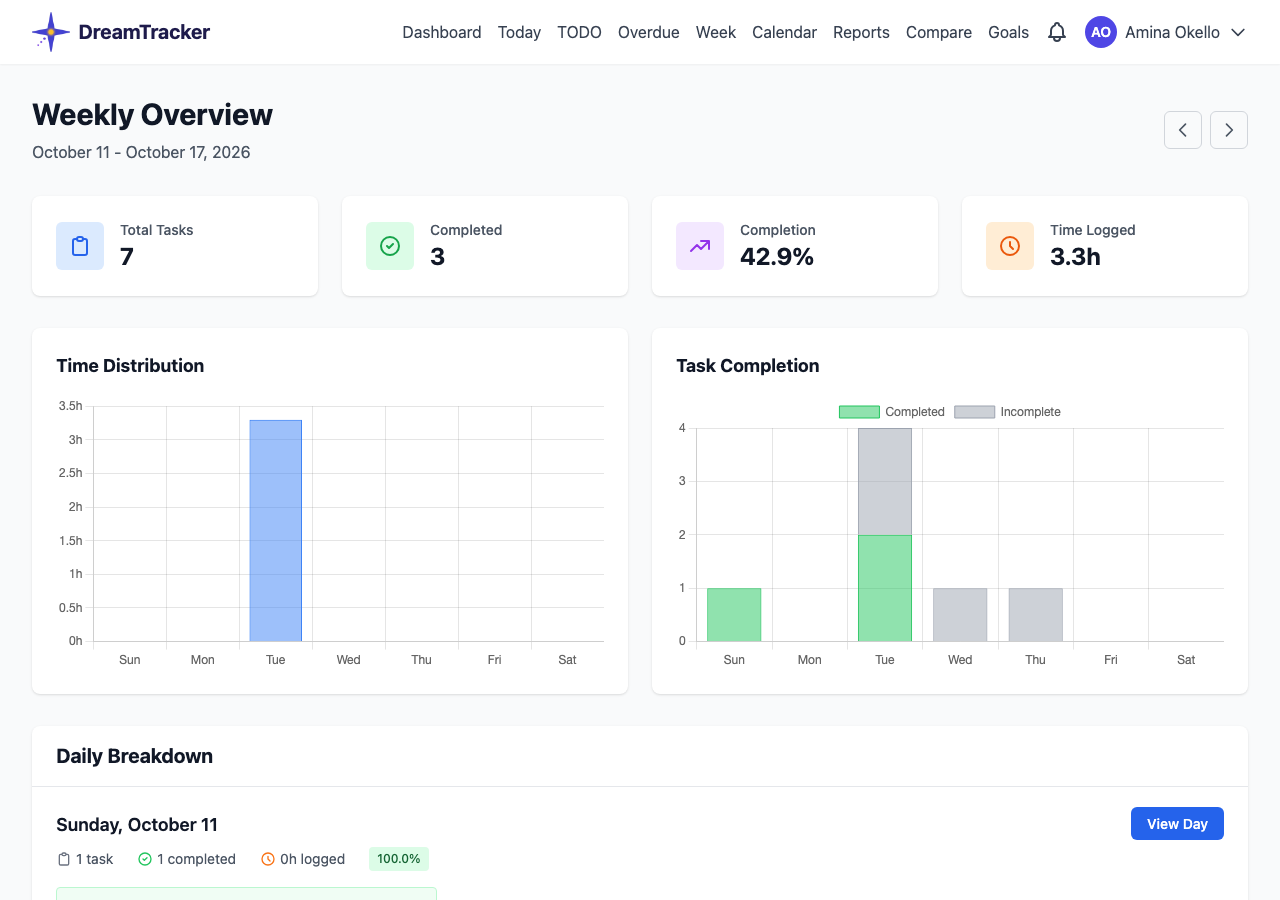
The Week view (Weekly Overview) covers Sunday to Saturday. Use the arrows beside the dates to move a week back or forward; This Week brings you back.
- Four tiles at the top: Total Tasks, Completed, Completion (a percentage) and Time Logged.
- Two charts: Time Distribution (hours logged each day) and Task Completion (completed and incomplete tasks each day).
- Daily Breakdown: a card for each day with its tasks, coloured by status (green completed, blue ongoing, red blocked, grey not started), and a completion chip: green from 67%, yellow from 34%, red below. Click a task to open it, or View Day to open the Today page for that date.
A.6.2 The Calendar
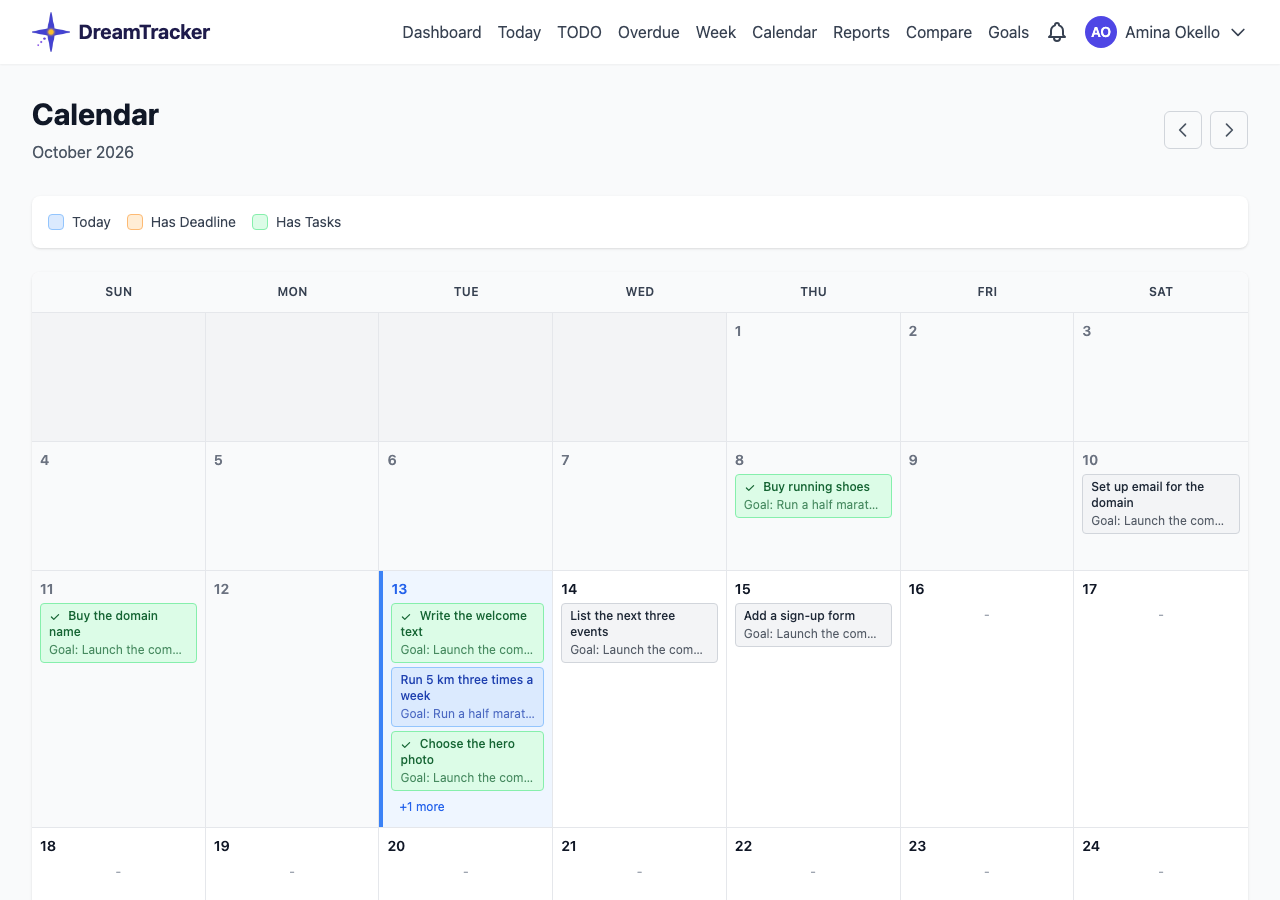
The Calendar shows one month, Sunday to Saturday. Move with the arrows; This Month brings you back. The legend shows Today, Has Deadline and Has Tasks.
- Each day lists the deadlines of goals, milestones and targets that fall on it. Click one to see its details, then View Details to open it.
- Up to three tasks scheduled that day are listed, coloured by status. +N more opens the Today page for that date.
- Click the day number to open that day on the Today page.
A.7 The Daily Report
The Daily Report is a one-page summary of a day: what you planned, what got done, how much time you tracked, and how each goal moved. It gives the day a score out of 100, and can be emailed to you or sent to Telegram every evening.
Open it with the Day report button on the Today page, or by clicking the coloured score under Progress there.
A.7.1 Reading the report
Choose the day with the arrows or the date box, and the length with Compact (one page) or Full (two pages, adding the lists of tasks).
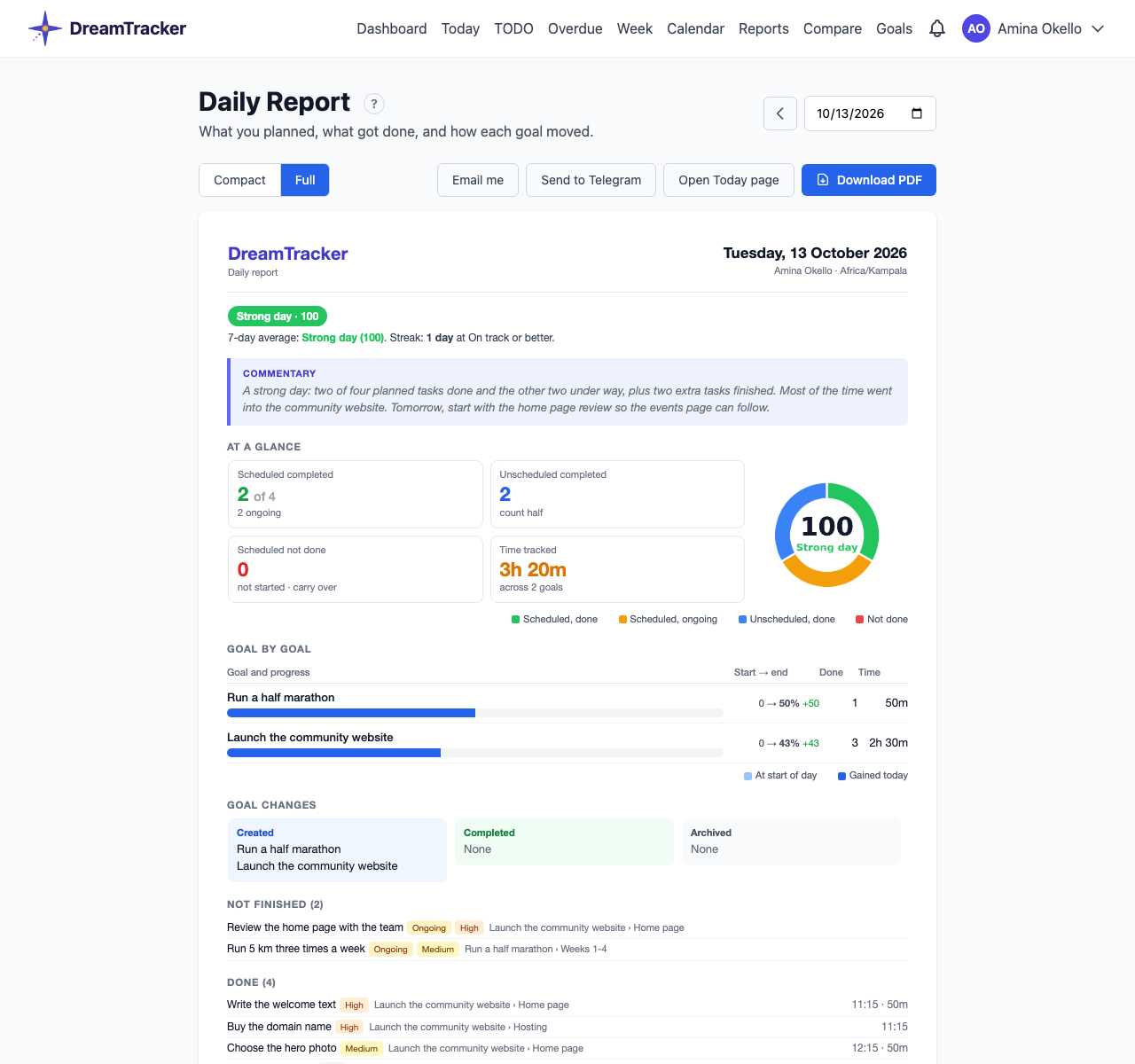
- The score badge, e.g. Strong day · 100. A grey No plan badge appears when nothing was scheduled, and a gold ★ Perfect day when every scheduled task was done.
- Trend: your 7-day average compared with the week before, and your streak (A.7.3).
- Commentary: a few sentences from Claude on how the day went and one suggestion for tomorrow. Claude sees only names and numbers, never your notes or descriptions, and it does not change the score.
- At a glance: scheduled tasks completed (and how many are ongoing), unscheduled tasks completed, scheduled tasks not done, and time tracked, with a ring chart of the score.
- Goal by goal: each goal that moved, with its progress at the start of the day and what it gained, tasks done and time.
- Goal changes: goals created, completed or archived that day.
- Full layout only: Not finished (ongoing first), Done with completion times, and Tomorrow.
A.7.2 How the day score is calculated
The score is a simple count in two halves of 50. A task's priority plays no part: a task is done, ongoing, or not done.
Scheduled half (up to 50). Your plan for the day is the tasks whose scheduled date is that day. Each one counts:
| Scheduled task is… | It counts |
|---|---|
| Completed by the end of the day | 1 |
| Ongoing (status Ongoing, or you timed work on it that day) | ½ |
| Not started | 0 |
The scheduled half = those counts added up ÷ the number of scheduled tasks × 50.
Unscheduled half (up to 50). Extra work on tasks that were not scheduled for that day: 50 if you completed at least one, 25 if you only timed work on one, otherwise 0.
Score = the two halves added up, rounded. Extra work can't make up for unfinished scheduled tasks.
Worked examples
- 4 tasks scheduled; 2 completed, 1 ongoing, 1 not started, no extra work: (1 + 1 + ½ + 0) ÷ 4 × 50 = 31, score 31, Warming up.
- The same day plus an extra task completed: 31 + 50, score 81, Strong day.
- 6 scheduled, all completed, nothing extra: 50, On track, and a Perfect day. With extra work completed too: 100.
Days with no plan. If nothing was scheduled, only the unscheduled half counts: 50 if you completed anything, 25 if you only worked on something, otherwise 0, and the No plan badge shows. Planning your day is the only way to reach a Strong day.
| Score | Tier |
|---|---|
| 75 to 100 | 🟢 Strong day |
| 50 to 74 | 🟣 On track |
| 25 to 49 | 🟠 Warming up |
| 0 to 24 | 🔴 Off track |
A.7.3 Streak and 7-day average
- 7-day average: the mean score of the day you're viewing and the six before it, compared with the week before. Days before you joined are left out.
- Streak: how many days in a row, up to the day you're viewing, scored 50 or more (On track or better). A day below 50 ends it.
A.7.4 PDF, email and Telegram
- Download PDF gives the report in the layout you chose: one page for Compact, two for Full.
- Email me sends a short summary with the PDF attached to your account's email address.
- Send to Telegram sends a chart card, then the summary and commentary with a link to the full report. Telegram must be connected first (A.10.3).
Both send the day and layout you are looking at, straight away.
A.7.5 Getting it every evening
In Settings → Daily report:
- Tick Send me a daily report.
- Choose Send at, in 15-minute steps (default 21:00, in your time zone).
- Under Send to, choose Email with the PDF attached, Telegram: chart and summary, or both.
- Choose the PDF layout and whether to Include Claude's commentary, then Save.
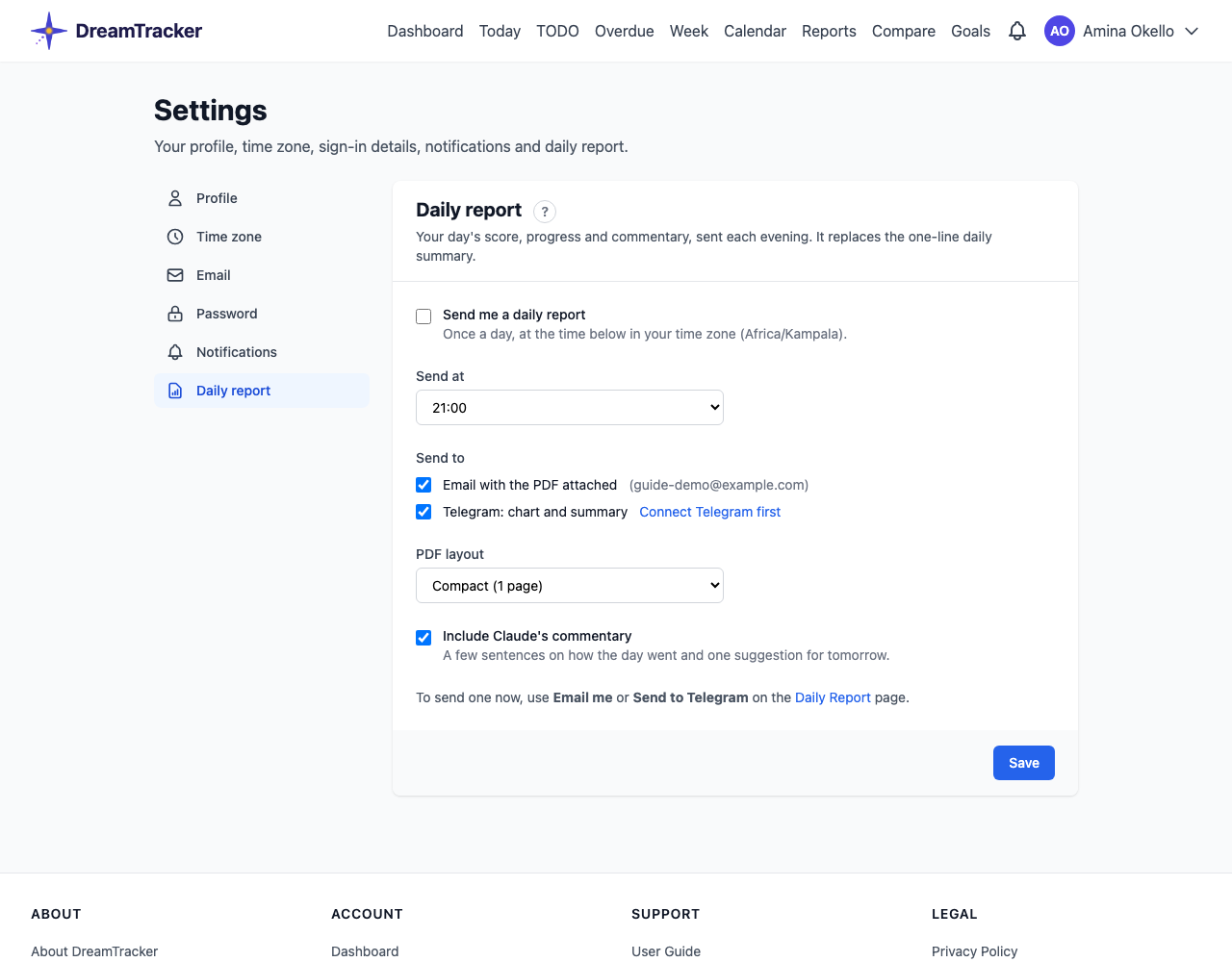
The report goes out within 15 minutes of the time you chose, once a day on each channel. Sending one by hand earlier in the day doesn't stop it. While the daily report is on, the older one-line "Daily progress summary" notification is not sent.
A.8 Other reports
Besides the Daily Report, the Insights menu in the top bar has Reports, Compare goals and My reports, reports you design and Claude writes. There is also an export of all your data.
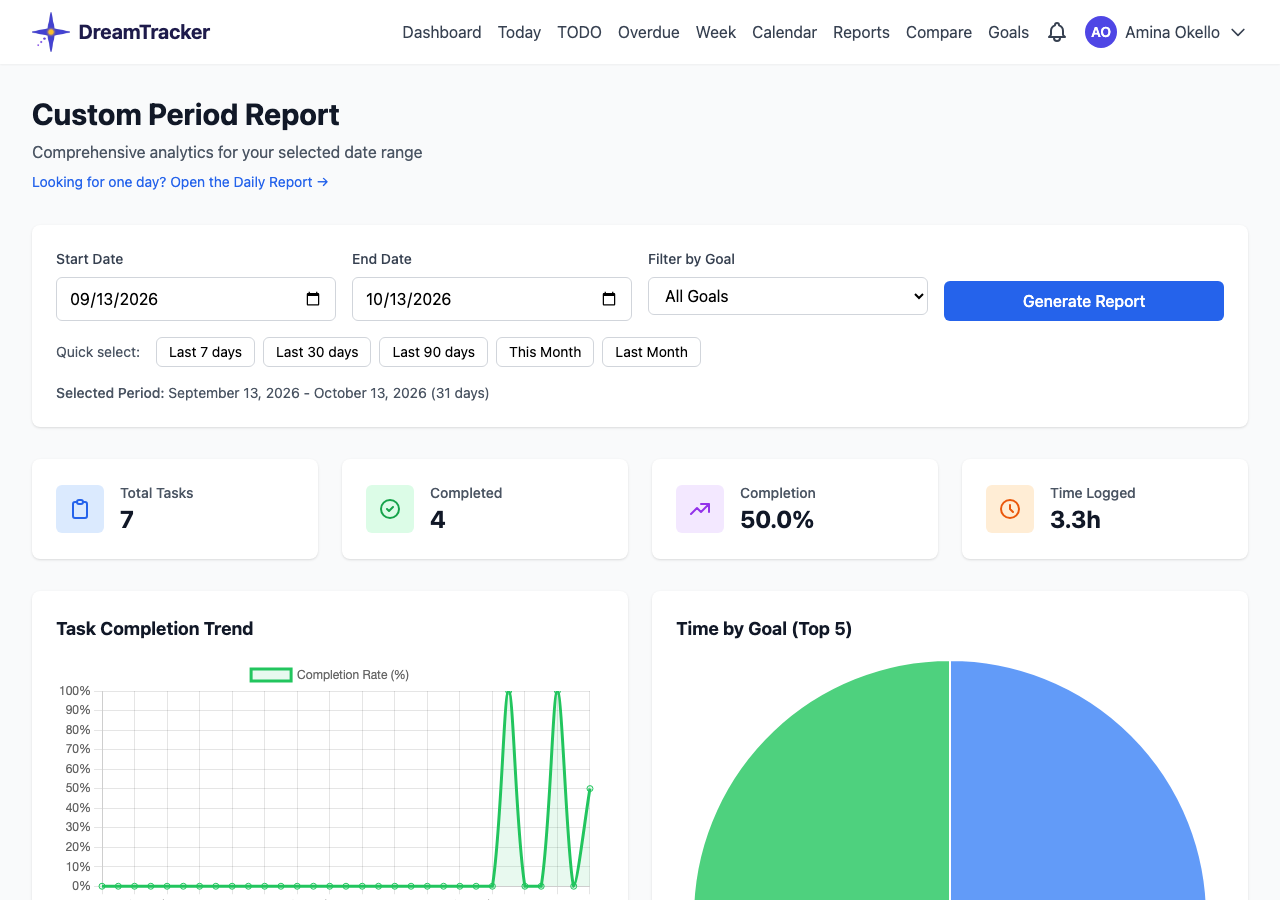
A.8.1 Reports for any period
Reports covers any stretch of days.
- Set Start Date and End Date, or click a quick choice: Last 7 days, Last 30 days, Last 90 days, This Month or Last Month.
- Optionally pick one goal in Filter by Goal.
- Click Generate Report.
You get totals for tasks scheduled in the period (total, completed, completion rate, time logged), a completion trend, time by goal and by category, tasks by status and by priority, how fast you complete work (Completion Velocity), and how often deadlines were moved (Deadline Analysis).
To look at a single day, use the Daily Report instead (A.7).
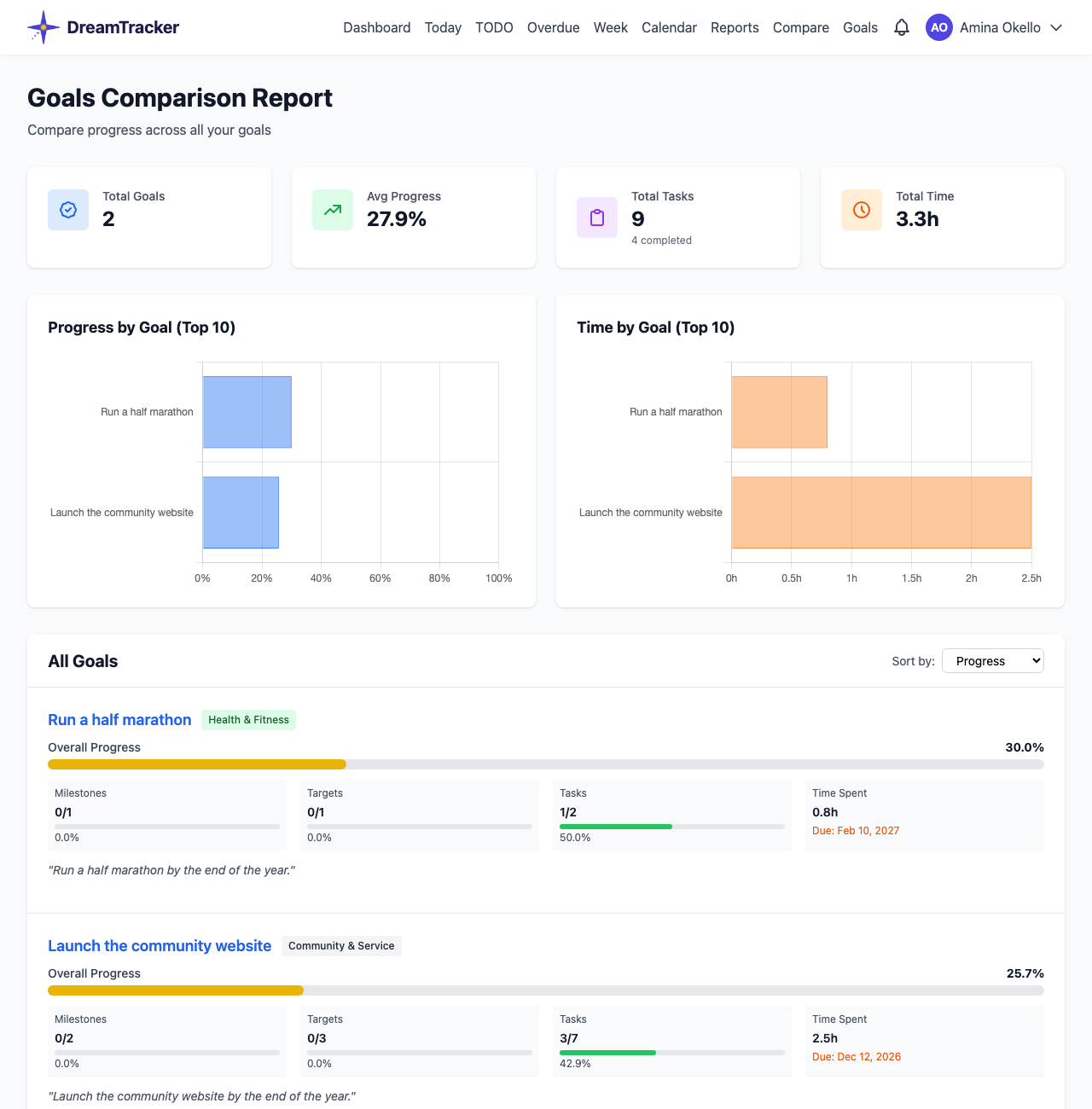
A.8.2 Comparing goals
Compare puts all your goals side by side: progress and time charts, then a card for each goal with its milestones, targets and tasks completed, time spent, deadline and statement. Use Sort by to order them by Progress, Name, Time Spent or Total Tasks.
A.8.3 Reports you design
My reports (Insights menu) are reports you design: you choose the work to look at, the period and what the report should cover, and Claude writes it from your data. An activity report follows a habit or a kind of work, such as morning exercise or washing the dishes.
- Pick a starting point: Habit consistency, Time spent, Patterns or Write your own. Each fills in a prompt you can change.
- In Theme words, type the words that find the tasks, separated by commas, e.g. exercise, walk. Any task whose name contains one of them is included, whatever else the name says, so "Light Morning Exercise - Mon Sep 21" and "Morning exercise + 1hr walk" are both found. Optionally limit it to one goal in Within goal, and choose the Period.
- Click Find tasks to see the tasks found. Untick any that don't belong.
- Under Similar meaning, DreamTracker suggests tasks named differently that may be the same activity, e.g. "Gym workout" for exercise. Tick the ones that belong. Later tasks very like a ticked one (the same name with another date) are included on their own.
- Edit the Prompt if you like, and click Save Report.
- On the report's page, click Write report. It usually takes under a minute; you can leave the page meanwhile.
Each report is saved under Written copies, so you can reread earlier ones. The words are saved rather than a list of tasks, so new tasks are picked up every time you write it again. The tasks this report used, under the report, shows exactly which tasks were counted.
Two more kinds look at whole goals:
- Goal progress: one goal over the period (up to 12 months). Templates: Progress review, What slipped and why and Milestone by milestone. The report gets progress at each point (daily for a month or less, otherwise weekly), tasks added, completed and retired, every point where progress fell and why (new tasks added, or tasks reopened), each milestone at the start and end of the period, deadlines that were moved, and whether the deadline is on track, at risk or overdue.
- Goal comparison: two or three goals side by side, with the same figures plus each goal's share of your time. Templates: Side by side, Where my time went and Which goal needs attention.
DreamTracker records every goal's figures each night. For days before that started, progress is worked out from when tasks were created, completed and retired. Those worked-out figures can't see a task that was completed and later reopened, or one that was deleted, and the report says which days were recorded and which were worked out.
A.8.4 Exporting to CSV
Click Export CSV on the Goals page, or Export Data (CSV) on the Dashboard. You get one spreadsheet file with your goals, milestones, targets, tasks, time sessions and deadlines, for keeping a copy or analysing elsewhere.
A.9 Working with others
You can share a goal with other DreamTracker users, so that you plan and track it together.
A.9.1 Inviting people to a goal
The goal's owner (the person who created it) and its editors can invite people.
- Open the goal and find the Collaborators section. Click Invite Collaborator.
- In Select User, search for the person by name or email.
- Choose a Role, Editor or Viewer (see below), add a Personal Message if you like, and choose how they hear about it: In-App Notification, Email Notification or both.
- Click Send Invitation.
Until they answer, the invitation shows as Pending on the goal page and under Sent Invitations on the Collaborations page, where whoever sent it can cancel it.
A.9.2 Roles
| Role | Can |
|---|---|
| Owner | Everything: edit, delete, invite, change roles and remove people. |
| Editor | View, add and edit milestones, targets and tasks, change who is responsible, and invite others as editors or viewers. Cannot delete, change roles or remove people. |
| Viewer | View only. |
The owner can change someone's role with the dropdown next to their name and Save, or remove them. When someone is removed, anything they were responsible for passes back to the owner.
A.9.3 Invitations you receive
When someone invites you, a notification appears. Open it, or go to Collaborations in the account menu, and choose Accept or Decline. If you decline, you can add a short message for the person who invited you.
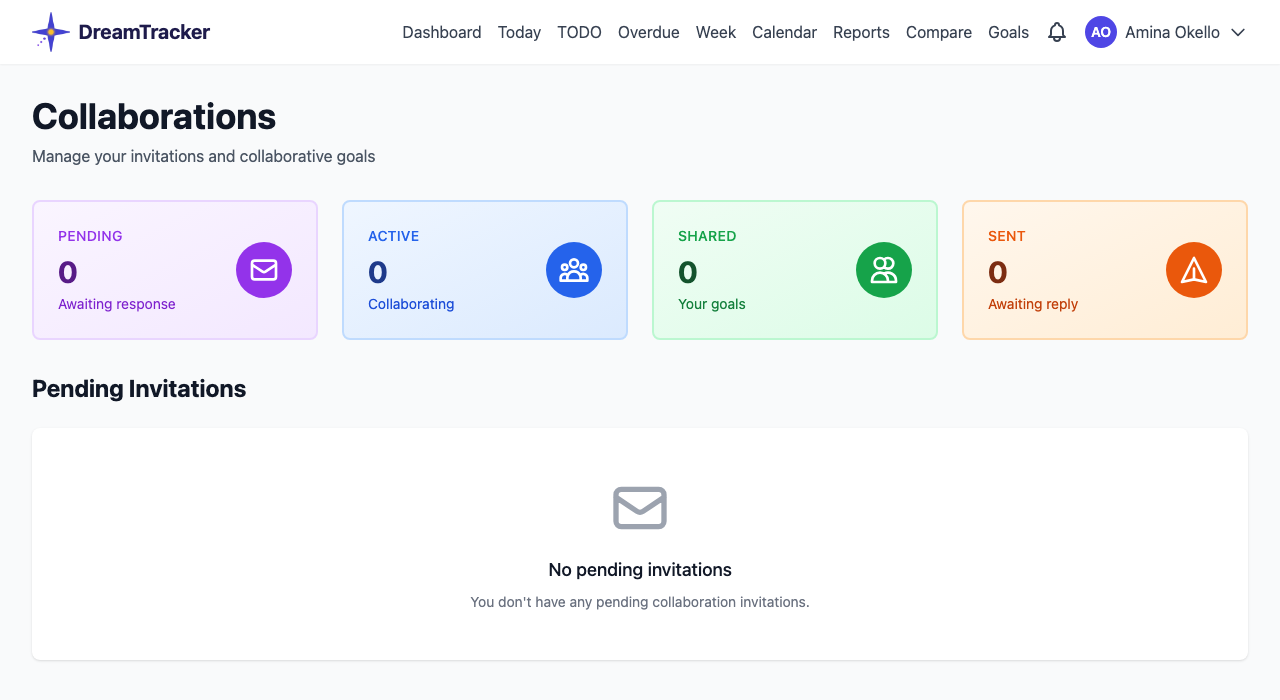
Once you accept, the goal appears in your Goals list. Week, Calendar, Today, the Daily Report and the reports still count only the goals you created.
A.9.4 Who is responsible
Every milestone, target and task has a responsible person: the one expected to see it through. It's shown on the item's page as Responsible: name. Owners and editors can change it with Change to: and Save. On the goal page, the My Responsibilities filter shows only what's yours.
A.10 Notifications and Telegram
DreamTracker tells you about deadlines, work that has stalled, and what collaborators are doing. Messages arrive in the app and, if you choose, by email and on Telegram.
A.10.1 The notification centre
The bell in the top bar shows how many notifications you haven't read. Click it to open the notification centre.
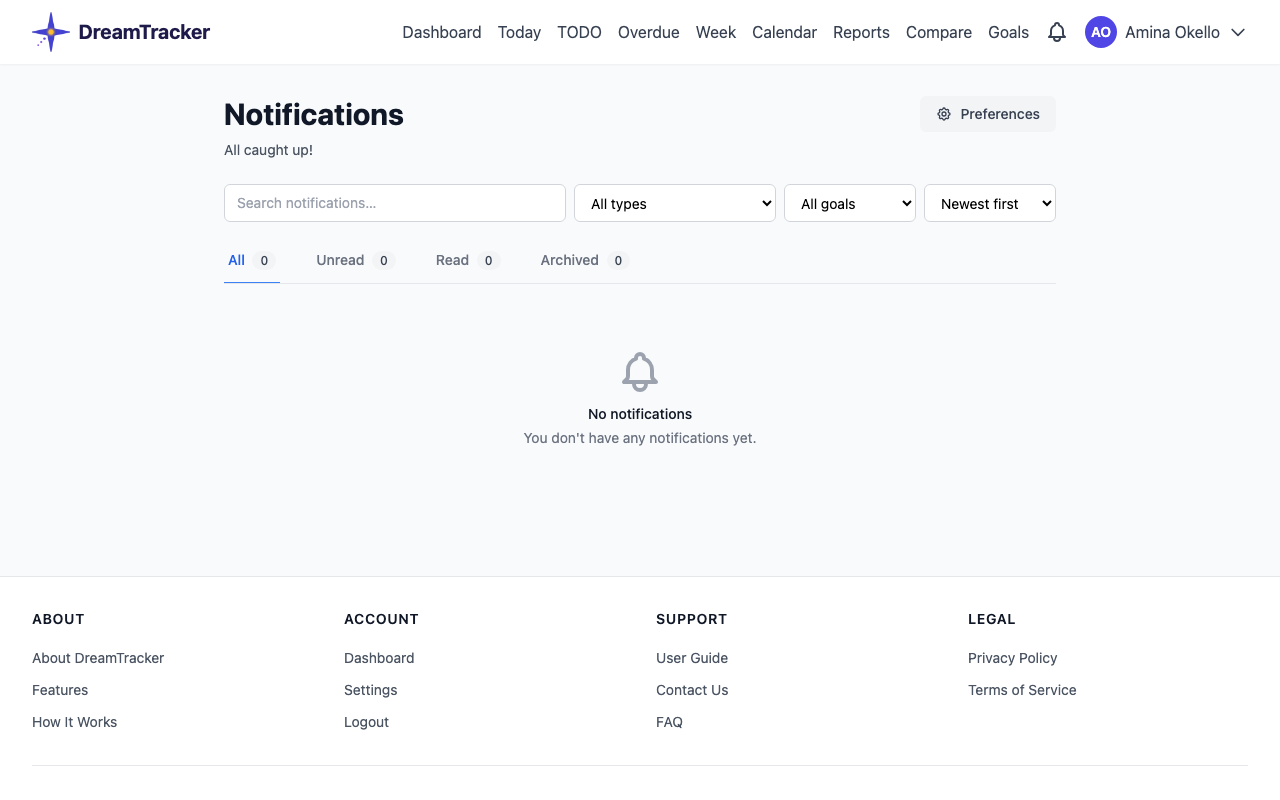
- Tabs: All, Unread, Read and Archived, each with a count. Search, filter by type or goal, and sort with the controls above them.
- Read shows the whole message and marks it read. Open → takes you to what it's about: a daily summary opens the Today page for that date, a weekly review opens the Week view.
- The archive and bin icons archive or delete one notification. Deleting cannot be undone; archived ones can be brought back with Restore.
- To act on several at once, tick them (or Select all on this page) and choose Mark read, Mark unread, Archive or Delete. Mark All as Read clears the lot.
| You hear about | When |
|---|---|
| Invitations, acceptances, declines, role changes, removal | As they happen |
| A collaborator completing a task on a shared goal | As it happens |
| Deadlines coming up | A week, three days, one day before, and on the day |
| Deadlines passed | Each morning while overdue |
| A task left Ongoing with no update for 7 days; a goal with no activity for 7 days | Each morning |
| Daily progress summary | Each evening you completed something (not sent while the Daily Report is on) |
| Weekly review reminder | Monday mornings |
A.10.2 Choosing what you hear about
Go to Settings → Notifications. Each kind of notification has three switches: In-App, Email and Telegram. All are on to start with. Turn off what you don't want and click Save Preferences.
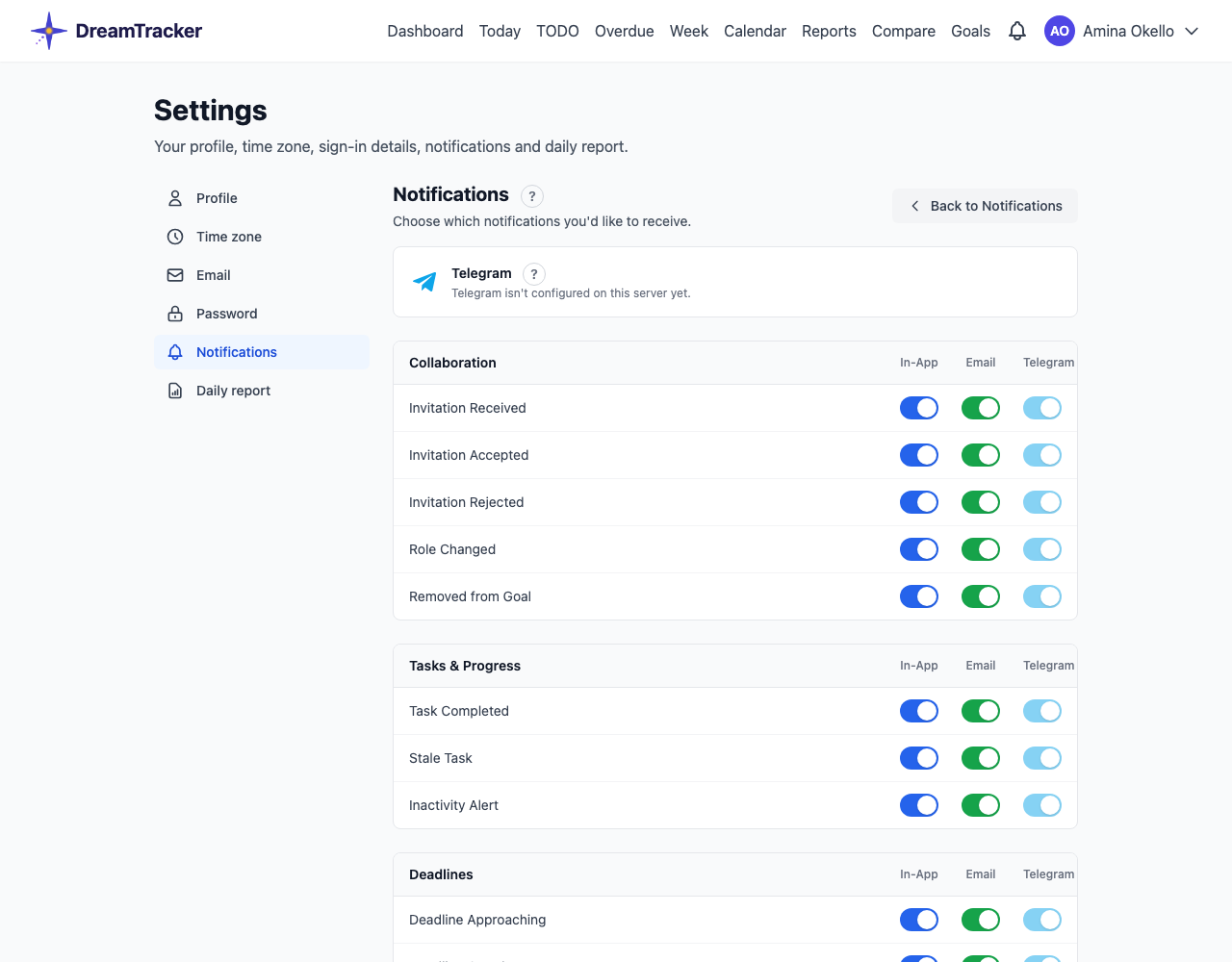
A.10.3 Connecting Telegram
- In Settings → Notifications, click Connect Telegram.
- Telegram opens a chat with the DreamTracker bot (@TrackDreamsBot). Tap Start.
- The bot replies DreamTracker connected!. Notifications now reach you there too, each with a View in DreamTracker link.
To stop, click Disconnect in Settings → Notifications, or send /stop to the bot.
Part B: dreamtracker-sync: tracking project work from your computer
dreamtracker-sync connects the projects on your computer to DreamTracker, so work done there shows up on the website without typing it in twice.
B.1 What dreamtracker-sync does
If you work on projects on your computer, often with Claude Code, dreamtracker-sync keeps DreamTracker up to date without typing anything in twice. Each project gets its own goal on the website. As you work, the tasks you start and finish are written to a log in the project, and the log is uploaded to the website several times a day. Your Today page, Daily Report and goals then show that work, on the day it was done.
B.1.1 The daily cycle
| When | What happens | Done by |
|---|---|---|
| Morning | A snapshot records where the project stands at the start of the day. | Automatically at 08:00 (B.4) |
| During the day | Each task started, completed, blocked or added is written to the daily log. | Claude Code as it works (B.3), or you |
| Several times a day | A report is made from the snapshot and the log and uploaded to the website. | Automatically at 12:00, 18:00, 20:00 and 23:50 |
| Next morning | Yesterday's log is uploaded one last time and filed away, and a fresh log starts. | Automatically |
B.1.2 The .dreamtracker folder
Everything lives in a .dreamtracker folder at the top of each project:
| File | What it holds |
|---|---|
project_template.yaml | The plan: the goal, its milestones, targets and tasks, each task with a status and priority. Becomes the goal on the website. |
daily_log.yaml | Today's log: one entry per change, with the time it happened. Only ever added to. |
snapshots/ | One file per day: where the project stood that morning. |
reports/ | One file per day: what changed, ready to upload. |
logs/ | Earlier days' logs, filed away each morning. |
.dreamtracker, and don't remove entries from the log. Task names in the log must match the names in project_template.yaml, or the website can't tell which task they mean.B.2 Installing and setting up
B.2.1 Installing
dreamtracker-sync is a command-line program for macOS (it needs Python 3.10 or newer). From a copy of its repository:
pip install -e .
dreamtracker-sync --version
B.2.2 Connecting to your account
The program signs in to DreamTracker with an API token, a long key tied to your account.
- On the website, go to Settings → API token. If you have no token yet, click Generate token.
- Click Copy. (Show reveals it; the page also shows when it was generated.)
- Run the setup wizard and paste the token when asked:
dreamtracker-sync init-configThe wizard asks for the API base URL (press Enter to accept https://dreamtracker.polycarp.me/api/v1), your Email, the API token, then your projects: a name and the project's folder for each, leaving the goal ID empty. It saves everything to ~/.config/dreamtracker/config.yaml, readable only by you.
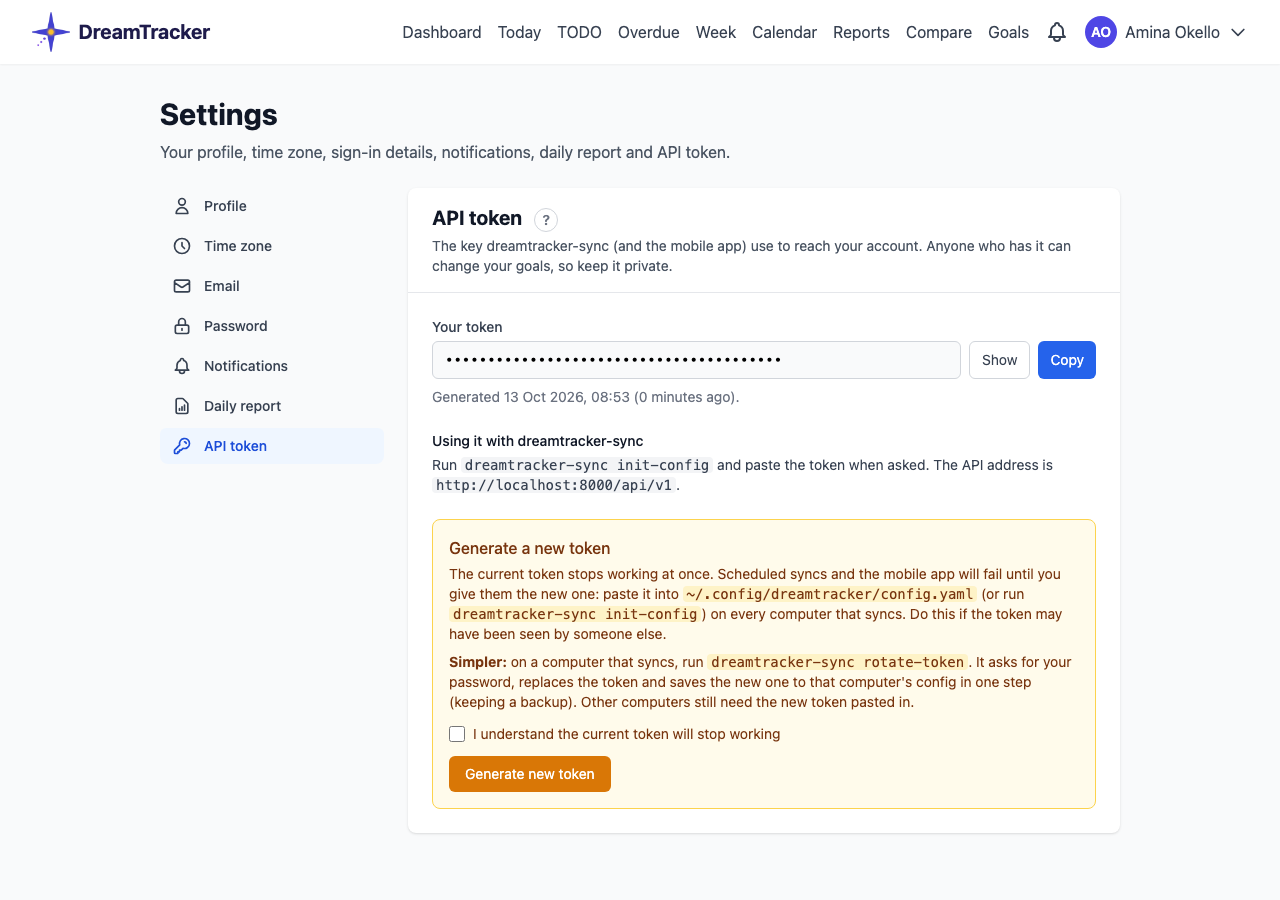
- the simpler way: on your computer, run
dreamtracker-sync rotate-token. It signs in with your password, replaces the token and updates the config file for you (keeping a backup); - on the website, use Generate a new token in Settings → API token, then paste the new token into
~/.config/dreamtracker/config.yaml(thetoken:line) on every computer that syncs.
B.2.3 Adding a project
- In the project, create the plan with Claude Code: run
/dreamtracker-init(B.3). It writes.dreamtracker/project_template.yamland offers to add the project to your config. - Check the plan, then create its goal on the website:
The program prints Registered 'My Project' — goal_id: … and saves the goal's ID in your config. The goal, with all its milestones, targets and tasks, now appears in your Goals list.dreamtracker-sync register --project "My Project"
Use register --all to register every project in the config; ones already registered are skipped.
B.3 Working with Claude Code
B.3.1 The DreamTracker skills
| Skill | What it does | When |
|---|---|---|
/dreamtracker-init | Reads the project (documents, code, history) and drafts its plan: 3 to 8 milestones, each with targets and tasks, with statuses set from where the project really is. Asks you to adjust, then offers to add the project to the config. | Once per project |
/dreamtracker-snapshot | Takes the morning snapshot and starts a fresh log. | Not needed with automatic sync; harmless if run |
/dreamtracker-log | Writes one change to the log and updates the plan. status shows the day's files; create starts an empty log; backfill rebuilds entries from that day's git commits. | Mostly automatic (below) |
/dreamtracker-status | Where this project stands: today's snapshot, log, last upload and the website's numbers, plus checks only Claude can make (log names that won't match the plan, today's commits not logged, auto-logging not set up, ongoing tasks gone quiet). Ends with a numbered list of what to do. Changes nothing (B.3.2). | Whenever you want to know |
/dreamtracker-report | Writes the day's report with a written summary. Give a date for work done after midnight, e.g. /dreamtracker-report 2026-10-12. | Optional: automatic sync makes a report anyway |
B.3.2 Checking a project: /dreamtracker-status
Type /dreamtracker-status in Claude Code while you're in a tracked project. Claude reports where the project stands, checks its log and plan, and ends with what to do. It only reads: it never changes a file or uploads anything.
DreamTracker status · My Project · 2026-10-13 15:20
──────────────────────────────────────────────
  Automatic sync:  on (next run 18:00)
  Snapshot today:  taken 08:00
  Today's log:     4 entries, last change 14:52
  Last upload:     work of 2026-10-13 (sent 13 Oct 12:00)
  On the website:  184 tasks · 78.3% complete · 380 min

Checks
  ✓ Log names match the plan
  ⚠ 2 of today's commits have no log entry
  ✓ Auto-logging set up in CLAUDE.md
  ⚠ 1 ongoing task with no activity for 7 days

Actions
  1. 4 log entries aren't on the website yet. They go at 18:00, or now
     → !dreamtracker-sync auto --project "My Project"
  2. Commits "Add sign-up form" and "Fix events list" have no log entry
     → /dreamtracker-log backfill 2026-10-13
  3. "Write the privacy policy" has had no activity since 5 Oct. Still in progress?
     → /dreamtracker-log "Write the privacy policy" paused
The top lines come from dreamtracker-sync status --here (B.4.3). The checks are ones only Claude can make, because they need the plan and the code:
| Check | What a ⚠ means |
|---|---|
| Log names match the plan | A log entry names a milestone, target or task that isn't in the plan, so the upload will skip it with “Could not resolve task” (B.7.2). Claude names the closest match. |
| Today's commits are logged | Work was committed today but not logged. backfill rebuilds the entries from the commits. |
| Auto-logging set up in CLAUDE.md | The project's CLAUDE.md lacks the DreamTracker section, so Claude won't log its work there (B.3.3). |
| Ongoing tasks gone quiet | A task marked ongoing has no log entry in 7 days. Not an error: say whether it's still going, paused or done. |
Actions come in order of importance: setup problems first, then anything that could lose work, then housekeeping. If all is well you see “Nothing to do. Everything is up to date.”
! are shell commands; paste one into the Claude Code prompt and it runs in your session. Lines starting with / are skills you type as shown. Or just ask Claude, e.g. “do actions 1 and 2”.B.3.3 What Claude logs for you
A project tracked by DreamTracker has a few lines in its CLAUDE.md asking Claude to log its own work. Claude then records, without being asked:
- task completed when it finishes a task in the plan;
- task started when it begins one;
- task added when the work turns up a task that isn't in the plan. If none of the existing targets fits, Claude adds a new target to the plan under the right milestone and logs the task there; the next upload creates the target on the website too (B.5.2). Milestones are never added this way: add them on the website first;
- task blocked when it can't go on without something else.
Small things (typo fixes, formatting, reading code) are not logged. Each entry carries the time it happened in your time zone, which is the time the website uses (B.5.3).
/dreamtracker-log "Task name" completed "what was done".! before any shell command in this guide to run it in your Claude Code session, e.g. !dreamtracker-sync status --here. /dreamtracker-status writes its suggested commands this way, so you can paste them straight in.B.4 Automatic sync
B.4.1 The schedule
Once set up, a background job on your Mac runs dreamtracker-sync auto for every project at 08:00, 12:00, 18:00, 20:00 and 23:50. You don't need to run anything yourself.
To install it, copy the schedule file from the repository's launchd folder and load it (check that the program path inside it matches which dreamtracker-sync):
cp launchd/me.polycarp.dreamtracker-sync.plist ~/Library/LaunchAgents/
launchctl bootstrap gui/$(id -u) ~/Library/LaunchAgents/me.polycarp.dreamtracker-sync.plist
If the Mac is asleep at a run time, the run happens when it wakes. If it is switched off, that run is skipped and the next one catches up.
B.4.2 What the first run of the day does
The first run each day, normally 08:00, does a little more for each project:
- Uploads yesterday's log one last time, so work logged late in the evening isn't lost.
- Files yesterday's log away in
logs/and starts a fresh one. - Takes today's snapshot.
Later runs only upload today's log. If today's snapshot already exists, for example because you ran /dreamtracker-snapshot yourself, it is never taken again or overwritten. If a project's log already belongs to today, it is kept and only the snapshot is added.
B.4.3 Checking that it worked
Inside a project in Claude Code, the quickest check is /dreamtracker-status (B.3.2): it reports on that project, checks its log and plan, and lists what to do, with each command ready to paste. From a Terminal, use status, or status --here for the project you're in.
The status command says whether automatic sync is on, then for each project shows today's snapshot, today's log, the last upload and what, if anything, to do:
dreamtracker-sync status

Automatic sync: on (next run 12:00)
==================================================
Project: My Project
  Snapshot today: taken 08:00
  Today's log:    4 entries, last change 10:41
  Last upload:    work of 2026-10-12 (sent 13 Oct 08:00, 3 applied, 0 created)
  → 4 log entries today, changed since the last upload. The next scheduled run (12:00)
    sends them, or run dreamtracker-sync auto --project "My Project" now.
The recommendations you may see:
| Recommendation | Why |
|---|---|
| No snapshot for today. Run … auto | It's after 08:00 and the morning run hasn't happened (the Mac was off, or the schedule isn't loaded). |
| The live log is still for an earlier day | Yesterday's log hasn't been filed away yet; auto does it. |
| N log entries today, changed since the last upload | Work not on the website yet. It goes at the next run, or now with auto. |
| Yesterday was never uploaded | Run the pipeline command it shows to send that day. |
| Not on the website yet | Run register (B.2.3). |
| Automatic sync: OFF | The schedule isn't loaded; the line shows the command to load it. |
| Up to date. | Nothing to do. |
The website's numbers for each project follow; add --local to leave them out.
For the detail of every run, each one also writes a line per project to ~/Library/Logs/dreamtracker-sync.log. To see the latest:
tail -30 ~/Library/Logs/dreamtracker-sync.log| Line | Meaning |
|---|---|
snapshot taken (previous log archived) | The first run of the day did its work. |
nothing logged | No changes in that project yet today. Normal. |
uploaded (12 updates, 3 applied, 1 created) | 12 changes sent; 3 changed something on the website; 1 new task created. A repeat upload often shows 0 applied, because the website already has them. |
upload FAILED — … | That upload didn't go through; the next run tries again. See B.7. |
not registered on the server; upload skipped | The project has no goal yet: run register (B.2.3). |
B.4.4 Running it now, or turning it off
- Run it now:
launchctl kickstart gui/$(id -u)/me.polycarp.dreamtracker-sync, or for one projectdreamtracker-sync auto --project "My Project". - Turn it off:
launchctl bootout gui/$(id -u)/me.polycarp.dreamtracker-sync. Load it again with thebootstrapcommand above.
B.5 How your work reaches the website
B.5.1 Matching tasks by name
Each log entry names a task with its milestone and target. The website finds the task with the same milestone, target and task names (ignoring capitals and extra spaces). If the milestone or target was renamed, it falls back to the task name alone, as long as only one live task has that name. Retired tasks are ignored.
A status change is applied when it moves the task forward (Untouched → Ongoing → Completed), or when the task is still in the state the log expected. If someone changed the task on the website in the meantime, the update is reported as a conflict and the website's version is kept.
B.5.2 New tasks
A task added entry creates the task on the website under its target, with the logged status and priority (Medium unless the log says otherwise). If the target doesn't exist yet but its milestone does, the target is created too, with the description and order from your plan file. So to give new work a group of its own, add the target and its tasks to the plan under an existing milestone and log the tasks as added (Claude does this for you). Milestones are never created this way: add them to the plan and the website first. A task is never created twice under the same target.
dreamtracker-sync sync --project "Name" --with-additions --with-deletions so your plan file follows: the task is added under its new target there and removed from the old one. Add --dry-run first to see what it will do.B.5.3 Completion times and timed work
- A task is marked completed at the time in its log entry, not at the time of the upload. Work logged on Monday and uploaded on Tuesday morning counts on Monday.
- If an entry has no usable time, a past day's completion is placed at 23:59 of that day.
- A task logged as started and later completed becomes a timed work session between the two, so it shows in Time Logged and counts as worked on in the day score. A completion with no start gets a short estimated session, marked [estimated start].
- Uploading the same day again is safe: the website keeps one report per goal per day and doesn't store the same session twice.
B.6 Command reference
Most commands take --project "Name" for one project or --all for every project, and --date YYYY-MM-DD (default today). --dry-run shows what would happen without changing anything.
B.6.1 Day to day
| Command | What it does |
|---|---|
auto | What the schedule runs: the morning snapshot when needed, then upload today's log (B.4). |
snapshot | Take the day's snapshot, file away the old log and start a fresh one. --force replaces an existing snapshot. |
report | Make the day's report from the snapshot and the log. |
upload | Send an existing report to the website. A day already sent is skipped unless you add --force. |
pipeline | Backfill, snapshot, report and upload in one go; stops at the first problem. |
backfill | Add log entries for a day from its git commits, matching commit messages to task names. Entries are marked [backfill]. |
summary | Summarise reports across projects for a day, or --from/--to a range. Changes nothing. |
B.6.2 Changing the plan
| Command | What it does |
|---|---|
complete / incomplete | Mark every task in the project, or in one --milestone or --target, completed or untouched, in the plan and on the website. |
archive / activate | Archive the project's goal, or make it active again. |
retire / restore | Take a --milestone, --target "M/T" or --task "M/T/Task" out of the plan or bring it back. --reason is required (see A.3). |
retired | List what has been retired from the project, with reasons. |
B.6.3 Keeping the template and the website in step
If you change task statuses on the website, the plan file on your computer can fall behind, and the other way round.
| Command | What it does |
|---|---|
diff | Show the differences. Changes nothing. |
pull | Copy the website's statuses into the plan file. |
push | Copy the plan file's statuses to the website. Refuses if the website changed since last time, unless --force. |
sync | Both ways. Stops if the same task changed on both sides; choose --prefer-server or --prefer-local. --with-additions also copies tasks added on one side to the other, creating their target if needed (not their milestone); --with-deletions also copies removals. --dry-run shows the plan without changing anything. |
B.6.4 Setup and checks
| Command | What it does |
|---|---|
init-config | The setup wizard (B.2.2). |
register | Create a project's goal on the website (B.2.3). |
rotate-token | Replace your API token. |
status | Each project's snapshot, log and last upload, what to do next, and its numbers on the website (B.4.3). --here shows only the project you're in; --local skips the website. |
status reports DATE, status logs DATE | Which projects have a report or a log for a day. |
B.7 Troubleshooting
Start with /dreamtracker-status in the project (or dreamtracker-sync status in a Terminal): it often names the fix (B.4.3).
B.7.1 “Nothing logged”
The project's log has no entries for the day, so there is nothing to send. If you did work on it, check that the project's CLAUDE.md has the DreamTracker lines (B.3.3), or log it by hand with /dreamtracker-log. For a past day, /dreamtracker-log backfill YYYY-MM-DD rebuilds entries from git.
B.7.2 “Could not resolve task”
A log entry names a task the website can't find. Usually the name in the log differs from the plan (a typo, or the task was renamed). Correct the name in the plan or on the website so they match, then upload that day again with upload --date YYYY-MM-DD --force.
B.7.3 “Already synced”
That project and day were sent before. Uploading again is safe; add --force. The automatic runs always send, so you only meet this when uploading by hand.
B.7.4 “Authentication failed”
The token in your config is wrong or was replaced. Copy the current one from Settings → API token into the token: line of ~/.config/dreamtracker/config.yaml, or run dreamtracker-sync rotate-token. If your account is new, it must be approved first.
B.7.5 Work landed on the wrong day
Completions are dated by their log entry's time. If work appears on the wrong day, check the entry's timestamp and that your time zone in Settings is right (A.1.4). Work done after midnight belongs to the new day.
Part C: Quick help
Short answers to the questions that come up most, with pointers to the full sections.
C.1 Questions people ask
C.1.1 On the website
Why is my day score only 50 when I finished lots of work?
Nothing was scheduled for that day. Without a plan the score stops at 50. Give tomorrow's tasks a scheduled date (A.7.2).
I forgot to stop a timer. How do I fix the time?
Open the task, find the session under Time Sessions History, click Edit and set the End to when you really stopped. Time you worked without the timer can be added with Add session (A.4.3).
Does a task's priority change my score?
No. A task counts as done, ongoing or not done, whatever its priority.
I didn't get my evening report.
Check Settings → Daily report is ticked and at least one channel is chosen, and that Telegram is connected if you chose it. The report goes out within 15 minutes of your chosen time (A.7.5).
A goal shared with me doesn't appear on Today or in my reports.
Those count the goals you created. Shared goals are in your Goals list (A.9.3).
What's the difference between cancelling, retiring and deleting?
Cancel a task you won't do; retire something that no longer belongs in the plan (it's kept on record); delete only what should never have existed (A.3).
Can I change who can see my goal?
Yes: owners and editors can invite people as editors or viewers, and the owner can change roles or remove people, on the goal's page (A.9).
C.1.2 With dreamtracker-sync
Do I still need to run /dreamtracker-snapshot every morning?
No. The 08:00 run takes the snapshot. Running it yourself does no harm: an existing snapshot is never replaced (B.4.2).
I worked late. Which day does it count on?
The day of the log entry's time. Work before midnight counts that day, even though it is uploaded the next morning (B.5.3).
My Mac was off at 08:00.
The first run after you switch on takes the snapshot and uploads the day before.
How do I check the sync is working?
In Claude Code, run /dreamtracker-status inside the project. From a Terminal, run dreamtracker-sync status: it shows each project's snapshot, log and last upload, and tells you if anything needs doing (B.4.3).
A task ended up under the wrong target.
Open Edit on the task and choose the right Target (A.2.2). If the target doesn't exist yet, add it first with Add Target on the milestone's page. Then bring the plan file into line with dreamtracker-sync sync --project "Name" --with-additions --with-deletions, running it with --dry-run first to check what it will change (B.5.2).
Can I upload a day again?
Yes, it's safe: dreamtracker-sync upload --project "Name" --date YYYY-MM-DD --force. upload sends the report as it is, so if you added entries to that day's log after its report was made, run dreamtracker-sync report --project "Name" --date YYYY-MM-DD first. Tasks added that day are created and then marked in the same upload.
If a label on screen differs slightly from this guide, the steps still apply.